Windows 10 Mobile OS
Introduction
Because I’m on the Windows Insider Fast Ring for Windows Mobile, I’m getting a version of the operating system that most wouldn’t use on their Windows Phones. Therefore I have to try to take a step back from moaning about bugs that I encounter which could be solely related to the particular build of Windows Mobile 10 I’ve got installed. Oh, and there are bugs indeed. The fast ring isn’t recommended if you’re not technically savvy or willing to end up with a phone that’s totally useless because of a dodgy build. I’ve a backup phone to swap the sim out of the windows phone from if needs be. So I’m happy to use my Lumia as my main phone and be on the fast ring. If you don’t have a backup phone but want the best of the latest Windows 10 Mobile has to offer, stay on the slow ring where builds are more stable and reliable. On the fast ring I have hit a few serious bugs, not least when I couldn’t log into the phone after one build was installed (had to do a reset – but that was actually quick and painless) and some unreliability sending text messages which was fixed in a more recent build.
I did use the phone with the OS it came with originally, which was Windows Mobile 8.1 Update 2, for a whole day. Even that OS wasn’t too bad! Very similar to Windows 10 Mobile. It was smooth, responsive and quite respectfully equipped, but for me, Windows 10 Mobile is a step up from Mobile 8.1. It’s like paint, with Mobile 8.1 being matte, and Windows 10 Mobile being gloss. Both are very acceptable at their job but Windows 10 Mobile just looks prettier and more suitable in most places.
First, let's look at the pre-installed apps on the PC
On Windows 10 for the PC you can count on one hand the number of pre-installed Microsoft apps that you’d choose to use instead of other non-apps (i.e. win32 software). On the latest public/retail build of Windows 10 (v1607) for PC there are no less than 32 Windows pre-installed Apps; take a deep breathe because the full 32 on PC are … 3D Builder, Alarms and Clocks, Calculator, Calendar, Camera, Connect, Contact Support, Films & TV, Get Office, Get Started, Groove Music, Mail, Maps, Messaging, Microsoft Solitaire Collection, Money, News, OneNote, Paid Wi-Fi & Mobile, People, Phone, Phone Companion, Photos, Quick Assist (under Accessories), Skype Preview, Sport, Sticky Notes, Store, Sway, Voice Recorder, Weather & Xbox. Phew that’s a heck of a lot!
Back in early 2016, when Windows 10 was still on v1511, I reviewed all the apps from the perspective of using a desktop “landlocked” to how most PCs are these days, with no touchscreen or anything fancy.
You can see my reviews of the in-built apps here:
http://reviewsofblah.blogspot.com/2016/02/windows-10-system-apps-review.html
My conclusion was that around half of those apps were of any respectable use in terms of functionality, although whether anyone would actually chose to use the pre-installed apps as a first port of call on the PC is highly debatable. Out of the pre-installed apps, I probably only use two on a regular daily basis (Mail & Store – although the latter is purely for checking for app updates). After that I will use 6 others every other day for some purpose over the course of a week (Weather, calendar, skype, feedback hub, Groove Music and Photos). That’s 8 in total.
Why is it that I don’t use any more regularly? Mostly it’s because the apps don’t do anything I need or can’t get elsewhere in a more rich and attractive environment. i.e. Microsoft Office or via a web browser. Who in their right mind would use the Money, News or Sports apps when there’s lots of News sites that offer better content that’s easier to navigate and more customisable on one site? Here in lies the main problem with apps on Windows 10 for PC.
The second main issue with Windows Apps is that they look pig-ugly for the most part. There’s so much empty space in most of the apps that you can’t help but feel like your using an app for a 16-bit PC and with less functionality, when in fact at least 50% of the apps have a decent amount of functionality going for them. But most everything all comes down to appearance, and there’s no doubting in my mind that Windows Apps (i.e. UWP) looks as basic and abstract as they come, which when we’ve been so used to rich, pretty and powerfully functional software on the PC for so many years, you can’t help but feel like the Windows apps take you back to a period for PCs that no one wants to go back to, which is 1995.
Now, let’s look at those pre-installed apps on Windows 10 Mobile
To my astonishment, my perception of the pre-installed apps on Windows 10 Mobile is a million miles away from how they are on the PC. Yes, I couldn’t believe it either. One of the biggest problems that the apps have on the PC is that they look pig-ugly and are full of wasted space but nothing can be further from the truth on a mobile device, not least because the screen is barely bigger than our hands. The pre-installed apps on this form factor look neat, tidy and, dare I say it, pretty. Less space certainly does wonders for UWP apps, a bit like skin cream takes years off people’s ages, less screen space brings the apps back into the 21st century in terms of visual appearance. The difference is astonishing and thanks to years spent using apps in the confined space of a mobile device, we don’t mind things looking more compact and even a little blander than on the PC, because it’s all about being able to see what we need to see and do it quickly on the mobile. We aren’t expecting to try to multitask between apps or do 3 different types of functionality within one single app.
Before you start thinking about which of the 32 pre-installed apps on the PC are considerably better on mobile, we need to establish that there are a few differences in terms of which apps come pre-installed on the mobile version of the OS. It’s not 32. For starters, some of those apps just don’t exist at all on the Mobile version of Windows 10; there’s no 3D Builder, Connect, Get Office, Microsoft Solitaire Collection (you can download this from the store though), Paid Wi-Fi & Mobile, Phone Companion, Quick Assist (under Accessories), Sticky Notes or Sway by default on the mobile OS, so you’re down by 9 apps to 23 pre-installed apps.
Let’s whizz through each of these apps and factor in how they perform on the mobile and if they really are worth their screen space in the menu
Alarms and Clocks
Nice enough, with an alarm feature, world clock and stopwatch/timer … but I don’t use it. I’d actually forgotten it was there! If I want to set an alarm, I use Cortana. Why would I use this app? This is slightly different to on Android, were one does use the actual inbuilt alarm system but on Windows, Cortana is a much more elegant and an in-your-face alternative to this app when it comes to alarms.
Calculator
Don’t use this app either. Well, who outside of a student would use a calculator on a daily basis? For quick sums, Cortana is best. Click on the search button in bottom right of phone (Which is always present) and type the sum. Cortana sorts it out quickly. For longer sums though, yes, calc does the job and has a whole heap of functionality and conversions available.
Calendar

Now, I do use this, although not to the degree I’d like to. The Calendar live tile is pretty useful enough, although like most live tiles, it can often go missing, or, to put it simply, just display nothing other than telling you it’s a tile for the calendar app. Most of the time the tile will tell you the day it is and flick through your agenda. This is undoubtedly useful. When you go into the app, it’s a thousand times more easier to digest than on the PC. Seems odd to say that, but being more compact helps this app display things more sensibly. The ‘agenda’ view is my default choice as it just tells you what you’ve got lined up that day and doesn’t have an opportunity to display the awful choice of colours for items that this app can do. I don’t tend to use the app too often to add/edit items (instead I will use the Google Calendar webpage) though.
Camera
Well, obviously I use this app. In the 21st century no one with a phone can get away from the camera. I don’t use a camera a lot, but that’s not because of the phone, more that I don’t take a lot of photos during the winter months and I’m not a big selfie person. However, as said before, the actual camera in this phone (I refer to the rear camera when I say camera) is pretty good. For the most part you’ll get very good photos from it as you’ll see in the examples in the actual phone article. But what about using the camera app?
Well, as with other Camera apps, less seems to be more these days, or in Microsoft’s case, everything is smaller. In the last year the camera app has undergone a little transformation on Windows 10 Mobile, of which the actual practicalities elude me as I didn’t have the phone back then. When you start up the app you have seven different software buttons to click on that are spread around the outside of the right and bottom. Going from top-right and then clockwise, we’ve got:
Change between rear/front camera
Quick Buttons dial
Settings button
Video/Camera button to change between modes
Start/Stop for taking photos, videos
Panoramic mode
Shortcut to Photos app via a small thumbnail of last image you’ve taken
Pretty much everything is there and quite often used by myself, except for going into the settings (there’s not much there) or panoramic (because one doesn’t take them every day).

On the quick dial button I generally only use HDR mode which does a great job when lighting isn’t very good. The one thing to remember here if you take a HDR photo is that you have to use the Photos App to choose the desired end-lighting result you want for the photo and save it before you can use that photo elsewhere. Yup, HDR mode doesn’t just take a gorgeous photo, it gives you a photo that you have to choose the light setting for afterwards, and then save that photo. Unless you’re in perfect light conditions, you’ll likely use HDR mode a lot to help brighten things up, but remember they take up space and you’ll want to choose your end photo sooner rather than later or storage is unnecessary taken up.
Response times in terms of taken photos, changing between cameras, modes and heading to the photos app are where you’ll notice that you’ve got a cheaper than average phone. They are not instant but we’re not talking painfully long here. 2-5 seconds perhaps. This doesn’t bother me at all, but I know some people will find any delay in these functions unbearable.
I’ve not taken a lot of panoramic but what I did take worked very well, even better results than I’ve seen on previous Android phones. Videos can be a little choppy if you move the phone about quickly so go slow and smooth on videos. Otherwise, the results look pretty good.
I haven’t played about with any of the settings to change ISO etc., or any of the app settings as there’s been no need, except to turn off the auto-upload of photos to OneDrive. It’s a lovely feature but I found that it will upload even on the mobile network, which eats up my data allowance and there’s no way to tell it to only upload on Wi-Fi at this current time. Surely that will come eventually?
Contact Support (Called ‘Get Help’ on mobile)
Not used at all on mobile.
Films & TV
Likewise I’m not into paying for TV and Video when I already have a SKY subscription and Amazon Prime subscription, so not used this app in anger yet. You can play videos already on the phone in this app but the only videos I have are taken are via the camera so I use the photos app to view them.
Get Started
Completely bypassed this on mobile. It seems even more worthless here than on the PC. Who has ever turned on a new phone and loaded up an app that explains how to use the OS?
Groove Music
This is more like it, because aside from occasionally using our phones as an audio communications device or numerous social media and internet related activities, the next biggest thing most use their phones for is to play music. Admittedly, I’m not one of them, but I do occasionally, although as said before, the speaker on my Lumia 640 isn’t great for music although I’d expect it to be much better via headphones.

On the PC, the Groove app has developed gradually since Windows 10 arrived but it’s still the poor relation to it’s predecessor, Windows Media Player, in terms of functionality. Where it does excel though, is in terms of visuals, and on mobile there’s no doubting that Groove looks beautiful. This is largely thanks to the way it uses album art and related colour tones to really make whatever you are listening to look visually appealing. In terms of functionality though, there’s not a lot here but is there ever on in-built music apps on phones? All we really want to do is play our music, which the app achieves. There is no ability to tell the app on mobile where you want it to look on your phone for music, so I end up with all audio appearing in Groove, which is slightly annoying. Also, the music controls in Windows Mobile only appear on the lock screen when you don’t have the app in focus but are playing a track, unlike in Android where the controls appear under the notifications tab constantly. This I find frustrating as you then have to load up the app again if you want to change track.
Mail
Out of all the in-built apps, Mail is one I use frequently; usually this is more for receiving email than actually responding or sending them. This app has grown tremendously since Windows 10 came out, becoming quite pretty, feature rich and visually appealing - something one can’t often say for Microsoft in-built apps. Naturally on the mobile, there’s no room for the background image to the app that we have on the PC but that’s the only thing missing on mobile, which is totally fine. All the various customisation and settings that you find on the app on the PC are here on the mobile. This is a very refined email app that won’t disappoint you. It does however suffer from the same issues as it’s PC version when it comes to syncing; it can often take an age to sync or not sync automatically at all (which seems to be intermittent on the mobile). These issues aren’t show stoppers as they come and go, but they are a daily minor annoyance.
 Maps
Maps
With HERE Maps deserting Windows Mobile, Microsoft in 2016 totally refurbished their Maps App. I’m no massive user of such apps but I did use it daily during a week away and found it to be less reliable than Google Maps in terms of the detail on the maps, and the GPS putting me in incorrect location. Sometimes I was at least 5 miles away from where I actually was, but this could be fixed by turning GPS and the app off and on again most of the time. There was also a constant battle with the app to get it to let me use GPS as it really doesn’t like you turning on GPS after you’ve already loaded the app.
There is however a lot to like about the this app, especially the driving mode, which looks really gorgeous. As with Google Maps, you can download the maps for offline use, and there’s inbuilt information about town and cities in the app.

I’d heard horror stories about this app, but it was nowhere near as bad as I expected. However, given the choice, I’d use Google Maps on my android tablet next time.
Messaging
It’s a simple interface in Windows 10 Mobile but it does the job, if sending/receiving text messages is your thing. There’s no fancy stuff here but that doesn’t bother me. Swiping for typing isn’t great on Windows 10 Mobile but it has improved in recent insider builds, so alternatively you can use the voice button to speak in your text, which providing you’ve got internet access, is very quick and efficient. The live tile for this app tells you the number of messages you’ve not read, and there’s also a backup facility for your messages, although it’s a manual process and hidden under settings/extra. There is the ability to reply to a message via the notifications tab although a constant bug is that if you use it, it’ll send the same text twice to the recipient.
As said in other places in this this blog, messaging also integrates with Cortana to send text notifications to your PC’s action centre and read out incoming messages although neither are fool-proof at this time.
Money
So disinterested in this am I, that I uninstalled this app from the phone.
News
For the live tile alone, this app is worthy of it’s existence, but if you really want to read news on the mobile, you are better off using a 3rd party news app or going to a website because Microsoft’s offering is like the newspaper version of a 52 pick-up card trick.
OneDrive
It’s there, but I don’t really use it much but it’s handy to have especially as it can be set to auto upload photos to OneDrive. Other than that, everything you’d expect to see if you went to OneDrive on the browser is here pretty much.
OneNote
I’ve flirted with OneNote several times since Windows 10 came about but never really been totally won over by it. However, it’s certainly a very feature rich app for note taking and organising those notes. It also gets arguably the most development time from Microsoft with several updates a month adding features and fixing any bugs. It’s ability to sync to OneDrive is undoubtedly critical for anyone wanting to use OneNote on any device, of which you have the option of Web, PC and mobile with this app. It’s as sophisticated as the Mail app on mobile and PC, and works very reliably. Well worth a serious look.
People
This isn’t the kind of app you’ll spend hours in but as an electronic address book it serves it’s purpose admirably and isn’t a pain to use when you want to look up or edit some contact’s details. Being able to pin people/business from the app to your home screen is highly useful too.
Phone
You can’t really ask for much more from this app: there’s a history of calls section, favourite contacts, and the classic phone pad all available form the central screen. Settings is highly lacking but you can get to your answerphone, the people app and add contacts from this app’s main screen. Aside from this, the live tile will display the number of missed calls or messages you have unread in your answerphone. This app really does the job you’d need from the must historical of tasks for a phone.
When answering a call, what you’d expect to see all pops up on screen; the contacts name and photo (if you’ve set one in the people app), the ability to turn on the speakerphone, reply with a text message, answer the call or a big bar down the bottom to answer the call. You can also go into other apps whilst in a call but I’ve found that if you’ve had a lot of apps open, it can be pretty sluggish to close the call, not least when you’re trying to get back to this app via it’s little notification bar at the top of the screen. It’s not every time, but there have been multiple struggles by me to end calls due to responsiveness issues on my 640.
Photos
This is an app I do use on a daily basis and it’s likely that many users of a Windows Phone would because, regardless of if you take photos or shoot videos with this phone, screenshots are readily opened for review in this app. In fact, any photo or video can be opened using the Photos app. It’s not a sophisticated as it’s PC version, as the functions you can perform when editing photos are limited to cropping, rotating or automatic enhancement of photos. If you want to do basic marking of photos (draw arrows or add text) you’ll have to use a 3rd party app, of which there is one I use called Photo Marker. Other than using this app to share photos (which is pretty unreliable to do through the app) it is pretty useful for sorting your photos into albums which you can then upload to OneDrive to backup or share with other people, regardless of if they have OneDrive.
Skype Preview
I’m not a big user of skype these days, largely because facebook Messenger has taken over as my messaging app of choice. However, when it comes to video chats, I’d probably consider skype first. On the PC, this new UWP version of Skype looks worlds better than Microsoft’s previous offering, but it looks even more beautiful on mobile. It almost looks like a complete skype client, which it isn’t quite yet but it does contain the majority of the functions most would need to utilise in skype. The bonus on Windows Mobile is that the app is always online lurking in the background waiting for messages for you. I’ve not used it to make calls in it’s UWP disguise, but for basic chatting, emoticons, photos etc. it works very nicely.
Sport
I don’t bother with this app at all on the mobile, instead preferring to use other 3rd party apps. The reasons? Same as the lame News app.
Store
Aside from checking for app updates and the occasional download of new apps, no one will likely pop into this app regularly. You can purchase apps, music, TV, movies etc. through the store, and the few times I’ve done this, it works nicely, but for most there are other places to go for this kind of content (legal ones) that provide more value for money. It’s getting better but even so, looking through information of apps looks untidy and messy, and the few reviews people have bothered to leave for apps are not overly useful or reliable either.
As to the actual library of apps available … more on that later.
Voice Recorder
Not used this at all on mobile.
Weather
As a pretty looking live tile, this app ticks all the boxes. It also has some very nice features but in terms of being accurate and reliable enough to use as a quick glance of a forecast, it’s severely lacking.
Xbox
Loading up with app is of limited interest to the majority of people although the two games I play on the mobile integrate with this app in terms of my game profile and points I’m awarded for performing certain achievements in the games. Even so, actual opening this app isn’t really relevant to me or most, unless you have an Xbox and are really into playing against friends.
The other pre-installed mobile apps
Hold on to your horses because there are other apps from Microsoft that do come preinstalled on the mobile OS that aren’t pre-installed on the PC, which are File Explorer, Excel, Word, PowerPoint & Wallet.
File Explorer
Now, on any mobile device, you’ll at least once or twice a week need to look at the file system in order to move things about or delete anything unwanted. The mobile version of file explorer is extremely basic and also completely hides any system locations from you, with no option to see them should you wish. You can view properties of files and folders, delete, rename, move or share them but that’s your lot. There’s no mapping drives, extra settings, show/hide file name extensions of hidden files. None of that stuff you’ll be used to in Windows for the PC. I’ve not missed these features on the mobile so I can’t complain at all. This app does what the vast majority of phone users need, which is give you access and basic control over your files on the phone and SD Card.
 Excel, Word & PowerPoint
I’m a big user of Word on the PC, as well as Excel, but hardly use PowerPoint so I can’t really comment about that app on the mobile. These apps are only for small sized devices of which you can only actually edit files in these apps if you have an Office 365 account. If you have Office 2016 on your PC, or even Office 2013, you’ll be at home with these apps. Sure, it’s not the same experience as on the PC: there’s no room for a funky ribbon up the top of the screen being always on display, but almost everything most could want is here.
All my main Office documents now lurk on OneDrive, of which these apps naturally integrate smoothly with. You can access local files but if you can, having files on OneDrive a great way to access them anywhere and have a backup. If you think these apps are just Office-lite, then think again because these are seriously feature rich. For example in word, most of what you’d see in the top ribbon on the PC is hidden down the bottom and accessible via a familiar menu system. From here you can access the Home, Insert, Draw, Layout, Review and View menus which give you access to a host of typical Word functionality such Paragraph formatting, bullet lists, styles, highlighting, tables, shapes, pictures, headers/footers, comments, drawings, margins, spelling, proofing, word count and plenty more. This is awesome! I’ve a Bluetooth keyboard which I use with the phone for typing documents. Sure, I don’t use all these excellent features as freely on the small mobile screen, but it’s brilliant to have them all there should you need them.

The Office apps are a joy to use and full of your favourite functionality. They are highly useable even on small mobile devices and not too fiddly to use as they include some nifty minor modifications to the way you do things which makes it easier on small devices.
Wallet
I can cover this in a few sentences because I don’t use it and have no interest in using it. Sorry.
Cortana & Edge
Aside from all those apps, there are two that are not included in the original 32 pre-installed app list for the PC, which are Cortana and Edge. They are not included in my app list because although you’d think they were apps, especially on the mobile, they are so integrated with the OS that to call them apps that you can uninstall or update through the Store is simply not the case. However, on the mobile their usefulness and prominence is vastly increased over their use on the PC for several reasons. First up, almost every mobile you buy will have a browser or search facility built in these days and rarely on mobile do you go loading alternatives to these two. It just doesn’t happen like it does on the PC. On the Mobile OS these two apps are so in your face that you will likely use them, so they are well worth having a closer look at.
Edge
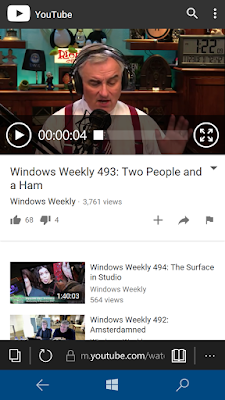
There's no YouTube App in Windows so you'll need to use Edge.
On the PC you’d probably have to be committed to chose Edge as your default web browser although come the current latest version of Windows, v1607, the browser is really seriously improved and a very viable option. On the mobile it’s considerably more than acceptable, meaning that I’ve felt zero need to go into the Store and find an alternative. For a browser on a mobile, Edge ticks all the boxes. It loads up 99% of the webpages you go to, it’s able to handle “rich” modern sites (although it can’t do Adobe Flash like it’s PC version), there’s multiple tabs, favourites, downloads and a decent sprinkling of settings. It’s perhaps not as fully featured as you find Chrome or other browsers on Android, but it pretty much does all you need it to do on a mobile device. It becomes even more relevant when there’s an absence of certain popular apps in the Store, so you’ll find yourself likely to use Edge to go a particular site rather than an app that’s not available. I haven’t experienced any major issues with Edge on the mobile, aside from the odd failure to load webpages (which won’t load one minute but then do another time) and some rather annoying issues clicking on links/images and it not responding until you’ve poked and prodded it about. These are though the exception to the rule. The vast majority of the time it’s highly useable, responsive and does the job you need it to.
The added advantage to using Edge on the mobile is that it will sync your favs to the PC version, providing you’ve turned on the sync settings, are logged into a Microsoft account, and on the latest flavours of Windows 10. This is very useful and neat. It’s no revolution but it’s certainly welcomed. The reading list is a little of an oddity. I love it, but exactly what syncs between the PC and Mobile version of Edge is rather random. Neither Reading list on either device looks the same as each other, but hey ho, at least you have a reading list on the mobile to store things to read later. As for History and download list, they don’t appear to sync between devices at all. No great loss though.
Something that is more unique to Edge is the reading view with makes complicated news articles that are full of adverts, considerably easier to read. It’s nice to have that on the mobile although I do hardly use it. Edge can also save passwords but as with the reading list, I’m not really convinced that is syncing between devices currently, and even if it isn’t, it’s a little more miss than hit for me as to visiting a page and it filling in the login details.
Cortana
On the PC, I’ve yet to find a valuable use for Cortana, aside from the fact that the search toolbar is incorporated into Cortana, so we’re all using it in some respect (unless you turn it off). The facility for Cortana to become my personal assistant looks about as far as away as me standing on the Moon next week. However, on the mobile it’s slightly different. For starters, there’s a software key for Cortana down the bottom right, which is thus always there. This means that Cortana is only a slight redirection of your thumb away, meaning that it’s so simple to call upon Cortana, why wouldn‘t you? Well, it’s still not especially useful enough if your not in the USA, and on recent Insider Builds it’s considerably flaky, but for those of you staying on a non-insider Windows 10 build, it should be there for you, but I’ve never found myself needing to use it to help remind me of the weather, news, traffic or public transport. I wouldn’t trust it in the UK anyways as even the official traffic related sites aren’t exactly that fantastic.
There is a wealth of potential in Cortana but on the PC it’s still another part of Windows 10 that’s there but the majority won’t use, but as I said, all is not lost on the mobile. It’s pretty useful for setting reminders. You can speak to it and tell it to remind you to pick up a parcel tomorrow at 4 o’clock and, providing you’ve got mobile/internet coverage, it will do that very reliably. I tend to just type ‘remind me’ into it’s search box and let the suggestions take me to where I want to go. Sure, using Cortana for reminders isn’t exactly harnessing any of it’s potential, but I have to admit that almost every day I use it multiple times for reminders. Sadly though, there’s no synchronisation of Cortana settings between mobile and PC. Ugh.
Well, sizzle my walnuts, all is not lost with integration between your phone and PC in Windows 10 though, thanks to Cortana, because it’s primary valuable feature for me is it’s ability to send notifications between your phone and PC! Yup, you can’t yet have reminders or the other ‘notebook’ settings sync between devices (i.e. your Cortana news, sports, traffic settings) but what is working is pinging notifications from your phone to your PC. What’s more, you don’t need any additional software on either device to do this, but I believe you need to be on the latest versions of Windows 10 (at least v1607 on PC) for this to work. I can’t even remember if it’s on by default but I think it is because I didn’t know where these notifications were coming from on my PC when I first got my Windows Phone. What apps on your phone get to send messages via Cortana to your PC can thankfully be controlled per app, so things like Mail, Calendar and Edge you’ll likely need to turn off for sanity reasons if you already have those notifications on your computer. It’s not intelligent enough to not send you the same mail notifications from the mail app on the PC and the mail app on the mobile, for example.
UPDATE – Just today turned on another option in Cortana to read aloud text messages that arrive. I’ve heard it say “You’ve received a text message from <Name>” and read the name very well but it then asked me to say if I wanted it read, which I sort of thought was the idea of telling it to do that. Shall test a bit more. Maybe another good use for Cortana I may use.
3rd-party apps in the Windows Store
This is the bottom-line for most people and was also for me. It was one reason I brought a cheap refurbished Windows Phone rather than forking out for a brand new one, because I really wasn’t sure how the app experience would be on Windows 10 Mobile. Sure, I had a good idea being a geek who looked about on the PC in the Store and found naff all interesting that one would want to use on the PC, and I had heard all the rumours about the dearth of choice and quality in the Store, but I really wanted to find out for myself if this was true.
So, you really want to know the answer right?
Is there anything in the Store worth using on Windows 10 Mobile?
Well, yes and no.
Is it as bad in there as you’ve heard in terms of quality and choice?
Yes.
But it’s not all bad …
… largely because the in-built apps provide the vast majority of the functionality that most people would need to use on a phone and they do a decent job. You’ve got your email, browser, Office Apps, Camera, Maps, Music and more bits and bobs that are just there on your mobile the minute you first turn it on. There’s really little to no need to go elsewhere to try and find improvements on these existing apps, which is just as well as it might not be easy to find anything else at times.
I really can’t tell you about the quality and choice in all different genres of apps that one might need to use because unless you really have a need for something else, you’re not going to spend the time or energy checking other apps out. However, I have raided the store for numerous apps, tried and tested several, and fully adopted plenty. So, it’s best that I go through the apps I do use on my mobile phone because I wouldn’t be using them unless I had to, would I? Well, I have installed some just to see what there are like so I’ll split this section up into 3rd party apps I use and those I’ve tried.
Apps I use
It’s not a complete dearth of quality or choice in the Store as I have found a decent number of apps that provide me with a valuable daily service.
Looking at social media, the
Facebook, Messenger, Twitter, VK (Russian Facebook) and Instagram apps are all pretty feature rich and contain the majority of the same functionality that you’d find on the android versions. Sure, there are a few exceptions that might annoy you (i.e. you can’t call anyone in Messenger) but almost everything is there and works. Somewhat annoyingly also with Messenger, is that it takes an age to connect every time you open the app up, especially if it’s been a while since you used it.
News wise, I can’t use my normal news app of choice, BBC News, as it doesn’t exist on Windows Mobile, so I either have to use the website via Edge or hit my second favourite news app,
The Guardian, which is available and does a very good job, although it is missing some niceties from the android version. I love the
BBC Sport app on android but the Windows version is a lame duck compared to it, as it’s really just a web-front end with no notifications or customisation but it’s better than nothing. As a big RSS user, I had to search out something to view the multitude of feeds I have stored on Feedly, but as that app isn’t on Windows either, the next best I found and use is called
Feedlab. It’s as good as Feedly and does what I need in an RSS feed viewer. Podcasts are also a staple diet of mine and I settled on used an app called
‘Podcast’ which although I couldn’t import my exported file of podcasts from my android app, I added my fav 10 podcasts to it easily and have no trouble with it. The notification when a new podcast episode arrives is pretty funky too.
To get all my text messages from my android phone imported I used the
“Switch to Windows Phone” app which is on Windows & Android and uses Bluetooth to transfer the data between phones. Takes a little while but worked.
Wordament and
SnapAttack are both word puzzle games that tie into the Xbox app for social gaming and help pass away 5-10 minutes here and there.
Sofascore is a feature-rich app for live updates a heck of a lot of sports, not just football or cricket. I’ve found it a little hit or miss with it’s notifications, but there’s a lot of sophistication in the app, although it’s not totally intuitive on how to use it.
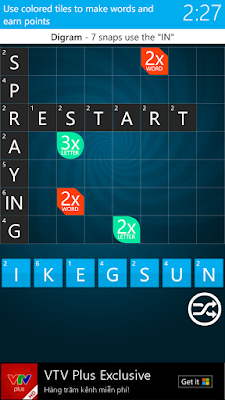
Snap Attack
The
TruCaller app on Windows Mobile looks pretty and does a very decent job. I’ve had less spam calls since I installed it, as it adds it’s own DB of numbers to the block list on your phone. Only one has got through in a month and even then it told me clearly that it was spam. If you’ve read about this app sharing your contacts, don’t worry, you can opt out of that.
VPN Unlimited I used whilst away as it offers a 7-day free trial and pretty decent price plans. The app itself just gets you started on entering VPN settings, although it’s not been updated for Windows Mobile 10, but you should be able to work it out. As a service it kept cutting out intermittently but it’s hard to know if that was their service or the fact I’m on fast ring Insider mobile builds. Still, it was up enough to be useful to me.
Photo Marker is like the paint application for your mobile, letting you do useful things to photos that the Photo App won’t let you, like draw arrows and write text on photos.
Apps I tried
There’s not a lot of weather apps solely for the UK weather (i.e. using Met Office data). Of them, MetWeather provides a lovely live tile but a rather plain looking forecast layout in the app, much like Met Office’s own app. Both I find hard to work out at a glance what is going on. There are other weather apps not based in the UK which will do a job, but if you prefer Met Office data, you’re very limited on Windows Mobile.
The Daily Mail app contains a lot of different sections from the paper and tons of articles but it does guzzle space, which if you don’t have an SD card, you’ll need, but it is an app with a decent live tile and tons of content.
The BBC iplayer and iplayer Radio apps are a big joke and nothing like the Android versions as you can’t download anything or log into your BBC ID. They are both much like that BBC TV show, pointless.
If you’re a heavy Google services user, then you can imagine life on Windows won’t be great and indeed that’s true. You’ll be ok for mail, contacts and calendar which all sync nicely through the in-built apps but there’s no official Google apps for anything else, but you can find some 3rd party apps that use Google Tasks (separate to Google Keep data) and Google Hangouts, but most of them just lack functionality, seem to have not been developed for Windows 10 Mobile or, like the hangout app I tried, are painfully slow. For most Google services you’ll have to use Edge for the likes of Google+ or Google Drive but everything else is pretty painful in itself to use via a small device sized browser.
The Bottom Line
Windows 10 Mobile isn’t half as bad as the perception might be with the public. It’s highly stable in terms of Operating System and its apps. It has everything you need for a useful internet existence along with the best of the social media networks available via the Store. Even on low spec hardware, Windows 10 Mobile is responsive. The 640 has only 1GB of RAM but that’s little issue to Windows 10 although swapping between apps and camera responsiveness is where this low-spec (compared to most android phones) really starts to struggle. If you can wait a few seconds longer here and there on occasions, it’s no problem though.
The Store will be the big issue for the majority of people but if you’re not a big user of apps you’ll likely to find something that will pass for a half decent job in any particular genre. If you’re a heavy google services user, you’ll find nothing here that’ll integrate with those services outside of Mail/Calendar that’ll be much use to man or beast. In some ways, the lack of a humongous choice of apps actually makes for a calmer and more refined existence on your phone as you can concentrate on just the basics without getting distracted by even more notifications or other avenues that fill up our days with the Internet.
There’s a lot to like about Windows 10 Mobile. It’s probably misunderstood by the majority of public but if you need a phone to do the basic internet functions, find Windows very likeable, and are on a tight budget, then this OS will deliver a decent whack for it’s money. The trouble is that for a few quid more, even in the low-end market, you can pick up Android phones that will be speedier and provide a colossus amount more of quality apps.
What’s Good About Windows 10 Mobile
Home Screen appearance and live tiles are beautiful to behold and use.
Lock Screen can be set to use Bing Wallpaper which provides a visually stunning daily photo, along with useful and configurable app status indicators.
Core inbuilt apps are very useful and often rich with functionality.
It’s like having Windows on your phone and is very familiar to navigate.
Navigation bar down bottom provides double-tap ability to turn/lock your phone on and off.
Cortana is considerably more useful on Mobile than PC, with app notifications able to be sent to your PC, easy ability to create messages and a potentially useful ‘read aloud’ of text messages.
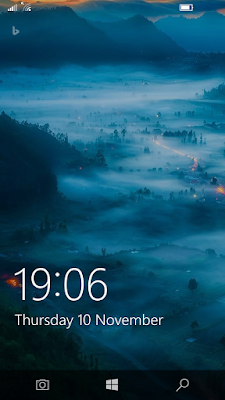
BING Wallpaper on the lock screen
What’s not so good about Windows 10 Mobile
The sounds for notifications aren’t the most pleasant if you hear them too often and aren’t easy to change.
Swiping your finger on the virtual keyboard to write is substantially more unreliable than on any Android phone I’ve ever used (but it is improving over time).
The process for setting times in various apps is rather arduously performed by scrolling for days/hours/minutes in separate scrollbars.
There’s a dearth of variety and quality in the Store on Windows 10 Mobile.


