Showing posts with label Windows Insider Build. Show all posts

Tuesday, 4 May 2021

Feedback Hub – Six Painful years later.

“If a tree falls in a forest and no one is around to hear it, does it make a sound?”

A much-debated question for decades.

In terms of Microsoft it’s, “If I submit something to the Feedback Hub, will Microsoft respond to me?”

This is easy to solve because it’s no.

I wrote about the top 5 most annoying issues with the feedback hub in 2015, and about its cousin app, The Insider App (Feedback Hub + Insider material) in 2016. We’re 5 years later and you’d hope things had improved, but alas it’s still the same problems. Thus, it’s time to limber up my finger muscles and vent again about why I feel the Feedback Hub is about as useful as writing your problem on a piece of paper and then throwing that paper in the recycling bin.

In many ways I’m wondering why Microsoft, and especially the Insider programme, bother with the Feedback Hub still. Just this year Microsoft began closing down its UserVoice communities - which one can understand because in many ways they were just webpage versions of the hapless Feedback App. There are also ways these days that Microsoft actually does user feedback much better! Yes, really. I’ll come to that in a bit.

First though, lets’ have a look once again at all that is wrong with the Feedback Hub; these issues have existed since it’s inception, so the usual response of “Oh, it’s new, it'll get better” no longer applies. In fact, to even think that anymore is just rude.

1. SLOW

It’s so slow searching and filtering through feedback that you’ve actually got more than enough time to reconsider your life and not bother submitting anything. The key to getting the public to engage and tell you what’s good or, more normally, what’s bad, is to make it simple and quick to give that feedback.

If you launch the Feedback App it’s a good 5+ seconds until you get to do anything, and then if you want to search to see if someone has posted about what you are “feeding back” before, the twirling ball of time appears like an omen of doom.  If that’s not bad enough, suppose you want to read the comments in any feedback post, it’s another 5+ seconds of hell until you see them.

It’s simply too slow.

2. SPAM

Something I’ve noticed in the last few years especially is that the Hub has become full of rubbish. I’m not referring to the problem of people submitting problems that aren’t problems, or giving suggestions for improvements that just are ludicrous, but literally posts and comments that are nothing short of spam. There are swear words, politics, and offensive matter lurking in the feedback hub. Comments for threads – which seemed like a very good idea at the time – on the whole add next to no value to any thread. The “I agree”, or “Fix it!” or “This is a stupid idea” really are like standing in the middle of a pavement and waiting for someone to take any notice of you.

Spam is a fantastic demonstration of how even Microsoft doesn’t look at the Feedback Hub anywhere near enough, because this Spam stays in the Hub for not just weeks, but months, and almost a year.

IF … and this is a big IF … Microsoft was really listening anywhere near attentively enough as it says it does, and that the feedback in the hub was divided adequately between different teams to examine and deal with … then this Spam would not exist.

Clearly something is very broken with the Feedback Hub in terms of how Microsoft responds to feedback (see next point) and looks at it … if they even do.

Let’s have a look at some of this spam so you can all see what I mean.

A great way to find spam posts is to search for Trump or Biden. It’s entertaining, and enough to make you cry with laughter and tears.

The above was posted 3 months ago. It’s not in anyway useful or actionable. Why is it even still there?


What’s worse about the above, is not only that it’s 3 months old, but that a Microsoft Engineer took the time to respond to it when it’s clearly Spam and not actionable.


This one above is perfect example of Feedback Hub Hell. Not only has it been there for 10 months, but it just shows that there’s no one is checking posts anywhere near enough.

This one has been there for a year! Whoever has the job to check the Apps/All Other Apps is clearly AWOL.

As clear as spam can be yet it’s still there after 2 months.

Clearly there is zero autodetection for swear words in the Feedback Hub. Not only that, but MS Engineers don’t seem to mind being insulted. This post is 8 months old.

Useful. But only as a sign that no-one is checking this section of the Feedback Hub.

Windows Server has left the Feedback Hub Building folks … about a year ago.

Proof not to use Feedback Hub in any emergency. No one will come to your rescue.

Conclusion: There’s little to no automatic spam detection in the Feedback Hub and manual monitoring is very suspect.

3. ONE-WAY

And herein lies the main problem with the Feedback Hub. I’d be fibbing if I said it was entirely one-way, but suffice to say, the vast majority of suggestions and problems you submit to the Feedback Hub will go without any official comment or acknowledgment. The default “We’ve got this!” message that the app gives you is like a kick in the teeth and means nothing, except that much like actually getting a kick in the face, it hurts. You know they’ve got it because you submitted it and can see it. But then what? It’s like tossing a twig into a stream and hoping it actually keeps going but knowing it probably won’t.

Out of the ~100 posts I’ve made in vain to the Feedback Hub over the last 6 years, a mere 15 have had an official response. It’s totally soul destroying. Why do I bother? There’s only so many times you can do something without any reward before you just simply give up. No one expects a personal response every time or even action from someone, but a sign perhaps that there is someone alive in the Feedback Hub HQ who can at least send some response, even if it’s a sentence, would be great. It would mean all the world and make a vast difference. It’s not as if Microsoft couldn’t do this, because they already do in other feedback departments. Yes, really.

I give you two examples; Microsoft Word and Microsoft Edge.

With Microsoft Edge, you can send feedback through the main menu, and I’ve done this a handful of times. Guess what? Every time I’ve done this, I’ve got a response! Yes, every time.

Example, 9th March, I fed back a rather simple issue:


One day later, I got this:


In the space of 24 hours I felt valued. I knew someone was listening to me. They were going to keep me posted which is the total opposite of the Feedback Hub. Not only that, but what I reported was acknowledged as an issue and I’d helped to make Edge better. Ok, they already knew about the issue, but I found out that a future build of Edge had a fix in it. Likewise with Microsoft OneDrive, I submitted feedback on a problem I had and got a response the next day!

In a very surprising development too, in Microsoft Word I submitted an issue I had with comments and gave a suggestion for improvement. I got an email within 48 hours asking me for more information!

Microsoft is capable of very good feedback, and making their customers feel valued for contacting them, but the clear exception is the Feedback Hub which feels more like a trophy cabinet for failed suggestions and problems.

Thursday, 29 June 2017

Windows 10 Mobile - Insider Build 15228

If you're going from 15226 to 15228, there's 35.15MB of goodness in this build upgrade to get your phone feeling loved. What puzzles me is this; how does 35.15MB take so long to download and install? If it's 1GB or 1MB, when it comes to Windows Update it seems to still take 5-10 minutes to download it, before we get to the initialising bit. What's that all about?

So, what's new in this build? Well, I've noticed one thing that wasn't mentioned on the build release notes; Windows Update font is no longer looking like a 5 year old's writing!!! Woohoo!


The rest of the fixes are just that, fixes. There's nothing else to talk about but I'll go on to say one of my two main moans about Windows 10 Mobile at this point. I'm not going to go on about apps or it's looming EOL, but about issues that seem to keep being annoying, which is Apps Resuming and Backup Options. Both take a long time to do anything. Sure, not all Apps appear to sleep when you are using them, but sometimes it can take an age to resume an app when you click on it - Messenger being one of the biggest offenders. Then there's clicking on the backup options link under Backups. It spends 10 seconds or more with the 'please wait' dots. I'm sure it used to be quicker man many builds ago.

Oh well, we've got to be thankful for small mercies when you are a Windows 10 Mobile user, so a new build is still something new although surely these could just be cumulative updates?

Saturday, 24 June 2017

Windows 10 Mobile - Insider Build 15226


Released in the last few days on the fast ring, this ~45MB build (think UUP technology that keeps build sizes down) took longer to download/initialise/install than it will ever take to check out the improvements. It was a good 20-30 minutes ... for 45MB? It's great that the build sizes are small now with UUP in the Creator's Update but why does it take so long to upgrade?

15226, as with the last several handful of Windows 10 Mobile builds, has been all about fixing minor issues in the OS and little else.

With the most notable change in recent Windows 10 Mobile builds being the label for Phone Updates changing to Windows Update, it's more of the same in this build as the release notes say:

  • This build also includes all the improvements from KB4022725.
  • We fixed an issue where some apps could not subscribe to SMS receive notifications.
  • We fixed an issue for Windows Insiders where some binaries stopped working when transitioning from Insider Preview builds to officially released builds.
  • We fixed an audio issue with Bluetooth headphones after Cortana reads an incoming SMS message to the user.
Bug fixes and security updates are better than nothing, but lets face it, sadly Windows 10 Mobile is coming to an end. No one will admit it though. We might yet be surprised but it's looking increasingly unlikely.

On the plus side, this latest build, as with most of the recent ones, runs very very smoothly. App updates still come thick and fast, making using Windows 10 Mobile very enjoyable, if you ignore Edge and the lack of a variety of apps. As a phone, email and news device, it ticks boxes very well. Add in the lumia camera (which is brilliant!) and it's a very useable device. If you want to use it as a serious web browser or get your hands on whatever app you might please, you're bang out of luck.

Still, though, it's confusing to use mobile users why there's still things like WeGo as a known bug for not working correctly, and the relabelling of Phone Update to Windows Update still looking like a 5 year old wrote it:


Will there be more build updates for Windows 10 Mobile? I believe so. 

Will there be anything worth getting excited about with these builds? Doesn't look like it.

Still, at least the phone works :)

Tuesday, 31 January 2017

The day my love of being a Windows Insider died


The 27th of January 2017 was a significant day in my lifetime of being an Windows Insider. It was the day that my love of being an Insider died. The mojo has gone. When a new build comes out with new features and I cannot be asked to download it and check it out, you know something is seriously wrong. Much like the break up of any relationship, things start going wrong gradually but this isn’t no “It’s me, not you” excuse but a firm “It’s definitely you, and maybe a little of me”. As I drift apart from the insider programme, I expect that soon I’ll probably not even look out for new builds or bother reading what's in them. That still seems hard to believe but the last few builds I’ve resorted to watching videos of the new features rather than spending my own time exploring.

So, what’s gone wrong?

Well, I always knew that the primary perk of being an insider was getting to test out new Windows 10 features. However, there was secondary reason for me signing up to be an insider and one that quickly became an equal to getting new builds: feedback. Essentially us Insiders are glorified testers for Microsoft. We all know that. We’re Windows Fans who love the OS so much we’d happily get our hands on anything new and play with it. I too was very much blinded by the love of trying new builds for a long time, until the recent v1607 build. It was at this point in time that my eyes were opened wide on the lack of development in the feedback area by Microsoft. I wrote this post all about my issues with the feedback hub app http://reviewsofblah.blogspot.com/2016/07/windows-10-insider-hub-app-two-years-on.html at that time. After lapping up receiving builds and feeding back issues or suggestions for a long time, I lived in the belief that the insider programme would develop and the feedback hub would be improved. The insider programme was in it’s infancy early on, so things could only get better, right? Even when things dragged on and the one-way feedback via the app continued for ages, I was briefly renewed in my faith when the new feedback hub was born (combining insider hub with feedback hub) and I believed that Microsoft were really taking responding to feedback seriously.

Well, that last change to the hub app was a year ago now (yes, there have been minor revisions since) and the feedback is still very much one-way. Results of surveys and quests are never forthcoming. The VAST majority of feedback items are not responded to. The hub is like a brick wall where people insert their thoughts into slots in between the cracks and hear nothing back. Then those items are left there for years to come like some sort of landfill site. A hub is supposed to be a hive of social interaction, but the main insider interaction is on twitter, and not everyone wants to be there. So, alas, the hub is a dead-end of feedback, STILL, and unless you actually badger a Microsoft employee on twitter and get lucky, you might get actual help and feedback. That’s not how feedback or the hub should work in the insider programme.

I've had enough. It's not enough for me anymore to play with new toys, give my thoughts and hear absolutely nothing back in response. I'm wasting my time doing so. If I feedback, I hear nothing back. If I don't feedback, I'm also wasting my time. So, either way, I'm wasting my time, right?

I've never asked for much in terms of feedback. Just a simple pie chart of what responses people give to quests or those hub pop-up prompts would be something I could cling to as a reward to gauge how everyone else is thinking about features in Windows 10. But, we don't even get that. We get stupid achievement badges in the hub but even those have almost stopped recently. The closest we get to feedback at all from Microsoft is via odd mentions in the "What's new in this build" when apparently it's because of us that things like night light got created or something like that.

I've become far too cynical now about this insider experience. Whilst they are turning out builds, and lauding up the community atmosphere of throwing parties and conferences for insiders all over the world, the actual development of feedback for a Windows Insider has gone nowhere but backwards.

I'm fed up and I've had enough. No more feedback from me about new builds or my suggestions for changes. The hub is a disaster and there’s no sign of any time soon that it’s development will increase and give me something to look forward to and believe in.

I’ve been dismayed by the feedback system for too long and my tether has well and truly worn out. I can’t provide feedback anymore without feeling emotional and almost crying that I’m submitting it into the abyss. I want to feel valued but I’m just a number in a Insider machine where feedback means less to Microsoft than throwing glamorous conferences and parties for Insiders.

Surely things will change in the future? I’m not convinced anymore. The ironic thing is that the feedback system Microsoft used to use, UserVoice, was more responsive and two-directional than the hub system. It didn’t seem like it back then, but when you look at the hub, you see a system that’s no better than uservoice in terms of the user experience of feedback interaction. Microsoft have their telemetry being drained from our Insider devices and diagnostics via the Hub, so the desire for them to improve an aspect of the Insider Programme that provides little value to them and extra work (I.e. feedback to insiders) seems to be ultra low.

Well, it’s important to insiders and those who value the time they give to test new things and provide both suggestions and report problems. Who wants to talk to a brick wall? How would Microsoft feel if they released a new build and no one bothered to install it? Turn the table around and that’s the treatment us Insiders get in terms of any feedback to justify our hard work checking out Microsoft’s own hardwork.

I don’t feel valued anymore. The love of being an Insider has gone. At this moment in time I’m not sure there’s any hope I’ll get that love back. That saddens me. Does it sadden Microsoft?

Tuesday, 13 December 2016

My thoughts on Windows 10 Mobile OS

Windows 10 Mobile OS

Introduction

Because I’m on the Windows Insider Fast Ring for Windows Mobile, I’m getting a version of the operating system that most wouldn’t use on their Windows Phones. Therefore I have to try to take a step back from moaning about bugs that I encounter which could be solely related to the particular build of Windows Mobile 10 I’ve got installed. Oh, and there are bugs indeed. The fast ring isn’t recommended if you’re not technically savvy or willing to end up with a phone that’s totally useless because of a dodgy build. I’ve a backup phone to swap the sim out of the windows phone from if needs be. So I’m happy to use my Lumia as my main phone and be on the fast ring. If you don’t have a backup phone but want the best of the latest Windows 10 Mobile has to offer, stay on the slow ring where builds are more stable and reliable. On the fast ring I have hit a few serious bugs, not least when I couldn’t log into the phone after one build was installed (had to do a reset – but that was actually quick and painless) and some unreliability sending text messages which was fixed in a more recent build.

I did use the phone with the OS it came with originally, which was Windows Mobile 8.1 Update 2, for a whole day. Even that OS wasn’t too bad! Very similar to Windows 10 Mobile. It was smooth, responsive and quite respectfully equipped, but for me, Windows 10 Mobile is a step up from Mobile 8.1. It’s like paint, with Mobile 8.1 being matte, and Windows 10 Mobile being gloss. Both are very acceptable at their job but Windows 10 Mobile just looks prettier and more suitable in most places.

First, let's look at the pre-installed apps on the PC


On Windows 10 for the PC you can count on one hand the number of pre-installed Microsoft apps that you’d choose to use instead of other non-apps (i.e. win32 software). On the latest public/retail build of Windows 10 (v1607) for PC there are no less than 32 Windows pre-installed Apps; take a deep breathe because the full 32 on PC are … 3D Builder, Alarms and Clocks, Calculator, Calendar, Camera, Connect, Contact Support, Films & TV, Get Office, Get Started, Groove Music, Mail, Maps, Messaging, Microsoft Solitaire Collection, Money, News, OneNote, Paid Wi-Fi & Mobile, People, Phone, Phone Companion, Photos, Quick Assist (under Accessories), Skype Preview, Sport, Sticky Notes, Store, Sway, Voice Recorder, Weather & Xbox. Phew that’s a heck of a lot!

Back in early 2016, when Windows 10 was still on v1511, I reviewed all the apps from the perspective of using a desktop “landlocked” to how most PCs are these days, with no touchscreen or anything fancy.

You can see my reviews of the in-built apps here: http://reviewsofblah.blogspot.com/2016/02/windows-10-system-apps-review.html

My conclusion was that around half of those apps were of any respectable use in terms of functionality, although whether anyone would actually chose to use the pre-installed apps as a first port of call on the PC is highly debatable. Out of the pre-installed apps, I probably only use two on a regular daily basis (Mail & Store – although the latter is purely for checking for app updates). After that I will use 6 others every other day for some purpose over the course of a week (Weather, calendar, skype, feedback hub, Groove Music and Photos). That’s 8 in total.

Why is it that I don’t use any more regularly? Mostly it’s because the apps don’t do anything I need or can’t get elsewhere in a more rich and attractive environment. i.e. Microsoft Office or via a web browser. Who in their right mind would use the Money, News or Sports apps when there’s lots of News sites that offer better content that’s easier to navigate and more customisable on one site? Here in lies the main problem with apps on Windows 10 for PC.

The second main issue with Windows Apps is that they look pig-ugly for the most part. There’s so much empty space in most of the apps that you can’t help but feel like your using an app for a 16-bit PC and with less functionality, when in fact at least 50% of the apps have a decent amount of functionality going for them. But most everything all comes down to appearance, and there’s no doubting in my mind that Windows Apps (i.e. UWP) looks as basic and abstract as they come, which when we’ve been so used to rich, pretty and powerfully functional software on the PC for so many years, you can’t help but feel like the Windows apps take you back to a period for PCs that no one wants to go back to, which is 1995.

Now, let’s look at those pre-installed apps on Windows 10 Mobile

To my astonishment, my perception of the pre-installed apps on Windows 10 Mobile is a million miles away from how they are on the PC. Yes, I couldn’t believe it either. One of the biggest problems that the apps have on the PC is that they look pig-ugly and are full of wasted space but nothing can be further from the truth on a mobile device, not least because the screen is barely bigger than our hands. The pre-installed apps on this form factor look neat, tidy and, dare I say it, pretty. Less space certainly does wonders for UWP apps, a bit like skin cream takes years off people’s ages, less screen space brings the apps back into the 21st century in terms of visual appearance. The difference is astonishing and thanks to years spent using apps in the confined space of a mobile device, we don’t mind things looking more compact and even a little blander than on the PC, because it’s all about being able to see what we need to see and do it quickly on the mobile. We aren’t expecting to try to multitask between apps or do 3 different types of functionality within one single app.

Before you start thinking about which of the 32 pre-installed apps on the PC are considerably better on mobile, we need to establish that there are a few differences in terms of which apps come pre-installed on the mobile version of the OS. It’s not 32. For starters, some of those apps just don’t exist at all on the Mobile version of Windows 10; there’s no 3D Builder, Connect, Get Office, Microsoft Solitaire Collection (you can download this from the store though), Paid Wi-Fi & Mobile, Phone Companion, Quick Assist (under Accessories), Sticky Notes or Sway by default on the mobile OS, so you’re down by 9 apps to 23 pre-installed apps.

Let’s whizz through each of these apps and factor in how they perform on the mobile and if they really are worth their screen space in the menu

Alarms and Clocks

Nice enough, with an alarm feature, world clock and stopwatch/timer … but I don’t use it. I’d actually forgotten it was there! If I want to set an alarm, I use Cortana. Why would I use this app? This is slightly different to on Android, were one does use the actual inbuilt alarm system but on Windows, Cortana is a much more elegant and an in-your-face alternative to this app when it comes to alarms.

Calculator

Don’t use this app either. Well, who outside of a student would use a calculator on a daily basis? For quick sums, Cortana is best. Click on the search button in bottom right of phone (Which is always present) and type the sum. Cortana sorts it out quickly. For longer sums though, yes, calc does the job and has a whole heap of functionality and conversions available.

Calendar


Now, I do use this, although not to the degree I’d like to. The Calendar live tile is pretty useful enough, although like most live tiles, it can often go missing, or, to put it simply, just display nothing other than telling you it’s a tile for the calendar app. Most of the time the tile will tell you the day it is and flick through your agenda. This is undoubtedly useful. When you go into the app, it’s a thousand times more easier to digest than on the PC. Seems odd to say that, but being more compact helps this app display things more sensibly. The ‘agenda’ view is my default choice as it just tells you what you’ve got lined up that day and doesn’t have an opportunity to display the awful choice of colours for items that this app can do. I don’t tend to use the app too often to add/edit items (instead I will use the Google Calendar webpage) though.

Camera

Well, obviously I use this app. In the 21st century no one with a phone can get away from the camera. I don’t use a camera a lot, but that’s not because of the phone, more that I don’t take a lot of photos during the winter months and I’m not a big selfie person. However, as said before, the actual camera in this phone (I refer to the rear camera when I say camera) is pretty good. For the most part you’ll get very good photos from it as you’ll see in the examples in the actual phone article. But what about using the camera app?

Well, as with other Camera apps, less seems to be more these days, or in Microsoft’s case, everything is smaller. In the last year the camera app has undergone a little transformation on Windows 10 Mobile, of which the actual practicalities elude me as I didn’t have the phone back then. When you start up the app you have seven different software buttons to click on that are spread around the outside of the right and bottom. Going from top-right and then clockwise, we’ve got:

Change between rear/front camera
Quick Buttons dial
Settings button
Video/Camera button to change between modes
Start/Stop for taking photos, videos
Panoramic mode
Shortcut to Photos app via a small thumbnail of last image you’ve taken

Pretty much everything is there and quite often used by myself, except for going into the settings (there’s not much there) or panoramic (because one doesn’t take them every day).


On the quick dial button I generally only use HDR mode which does a great job when lighting isn’t very good. The one thing to remember here if you take a HDR photo is that you have to use the Photos App to choose the desired end-lighting result you want for the photo and save it before you can use that photo elsewhere. Yup, HDR mode doesn’t just take a gorgeous photo, it gives you a photo that you have to choose the light setting for afterwards, and then save that photo. Unless you’re in perfect light conditions, you’ll likely use HDR mode a lot to help brighten things up, but remember they take up space and you’ll want to choose your end photo sooner rather than later or storage is unnecessary taken up.

Response times in terms of taken photos, changing between cameras, modes and heading to the photos app are where you’ll notice that you’ve got a cheaper than average phone. They are not instant but we’re not talking painfully long here. 2-5 seconds perhaps. This doesn’t bother me at all, but I know some people will find any delay in these functions unbearable.

I’ve not taken a lot of panoramic but what I did take worked very well, even better results than I’ve seen on previous Android phones. Videos can be a little choppy if you move the phone about quickly so go slow and smooth on videos. Otherwise, the results look pretty good.

I haven’t played about with any of the settings to change ISO etc., or any of the app settings as there’s been no need, except to turn off the auto-upload of photos to OneDrive. It’s a lovely feature but I found that it will upload even on the mobile network, which eats up my data allowance and there’s no way to tell it to only upload on Wi-Fi at this current time. Surely that will come eventually?

Contact Support (Called ‘Get Help’ on mobile)


Not used at all on mobile.

Films & TV

Likewise I’m not into paying for TV and Video when I already have a SKY subscription and Amazon Prime subscription, so not used this app in anger yet. You can play videos already on the phone in this app but the only videos I have are taken are via the camera so I use the photos app to view them.

Get Started

Completely bypassed this on mobile. It seems even more worthless here than on the PC. Who has ever turned on a new phone and loaded up an app that explains how to use the OS?

Groove Music

This is more like it, because aside from occasionally using our phones as an audio communications device or numerous social media and internet related activities, the next biggest thing most use their phones for is to play music. Admittedly, I’m not one of them, but I do occasionally, although as said before, the speaker on my Lumia 640 isn’t great for music although I’d expect it to be much better via headphones.


On the PC, the Groove app has developed gradually since Windows 10 arrived but it’s still the poor relation to it’s predecessor, Windows Media Player, in terms of functionality. Where it does excel though, is in terms of visuals, and on mobile there’s no doubting that Groove looks beautiful. This is largely thanks to the way it uses album art and related colour tones to really make whatever you are listening to look visually appealing. In terms of functionality though, there’s not a lot here but is there ever on in-built music apps on phones? All we really want to do is play our music, which the app achieves. There is no ability to tell the app on mobile where you want it to look on your phone for music, so I end up with all audio appearing in Groove, which is slightly annoying. Also, the music controls in Windows Mobile only appear on the lock screen when you don’t have the app in focus but are playing a track, unlike in Android where the controls appear under the notifications tab constantly. This I find frustrating as you then have to load up the app again if you want to change track.

Mail

Out of all the in-built apps, Mail is one I use frequently; usually this is more for receiving email than actually responding or sending them. This app has grown tremendously since Windows 10 came out, becoming quite pretty, feature rich and visually appealing - something one can’t often say for Microsoft in-built apps. Naturally on the mobile, there’s no room for the background image to the app that we have on the PC but that’s the only thing missing on mobile, which is totally fine. All the various customisation and settings that you find on the app on the PC are here on the mobile. This is a very refined email app that won’t disappoint you. It does however suffer from the same issues as it’s PC version when it comes to syncing; it can often take an age to sync or not sync automatically at all (which seems to be intermittent on the mobile). These issues aren’t show stoppers as they come and go, but they are a daily minor annoyance.


Maps

With HERE Maps deserting Windows Mobile, Microsoft in 2016 totally refurbished their Maps App. I’m no massive user of such apps but I did use it daily during a week away and found it to be less reliable than Google Maps in terms of the detail on the maps, and the GPS putting me in incorrect location. Sometimes I was at least 5 miles away from where I actually was, but this could be fixed by turning GPS and the app off and on again most of the time. There was also a constant battle with the app to get it to let me use GPS as it really doesn’t like you turning on GPS after you’ve already loaded the app.

There is however a lot to like about the this app, especially the driving mode, which looks really gorgeous. As with Google Maps, you can download the maps for offline use, and there’s inbuilt information about town and cities in the app.


I’d heard horror stories about this app, but it was nowhere near as bad as I expected. However, given the choice, I’d use Google Maps on my android tablet next time.

Messaging

It’s a simple interface in Windows 10 Mobile but it does the job, if sending/receiving text messages is your thing. There’s no fancy stuff here but that doesn’t bother me. Swiping for typing isn’t great on Windows 10 Mobile but it has improved in recent insider builds, so alternatively you can use the voice button to speak in your text, which providing you’ve got internet access, is very quick and efficient. The live tile for this app tells you the number of messages you’ve not read, and there’s also a backup facility for your messages, although it’s a manual process and hidden under settings/extra. There is the ability to reply to a message via the notifications tab although a constant bug is that if you use it, it’ll send the same text twice to the recipient.

As said in other places in this this blog, messaging also integrates with Cortana to send text notifications to your PC’s action centre and read out incoming messages although neither are fool-proof at this time.

Money

So disinterested in this am I, that I uninstalled this app from the phone.

News

For the live tile alone, this app is worthy of it’s existence, but if you really want to read news on the mobile, you are better off using a 3rd party news app or going to a website because Microsoft’s offering is like the newspaper version of a 52 pick-up card trick.

OneDrive

It’s there, but I don’t really use it much but it’s handy to have especially as it can be set to auto upload photos to OneDrive. Other than that, everything you’d expect to see if you went to OneDrive on the browser is here pretty much.

OneNote

I’ve flirted with OneNote several times since Windows 10 came about but never really been totally won over by it. However, it’s certainly a very feature rich app for note taking and organising those notes. It also gets arguably the most development time from Microsoft with several updates a month adding features and fixing any bugs. It’s ability to sync to OneDrive is undoubtedly critical for anyone wanting to use OneNote on any device, of which you have the option of Web, PC and mobile with this app. It’s as sophisticated as the Mail app on mobile and PC, and works very reliably. Well worth a serious look.

People

This isn’t the kind of app you’ll spend hours in but as an electronic address book it serves it’s purpose admirably and isn’t a pain to use when you want to look up or edit some contact’s details. Being able to pin people/business from the app to your home screen is highly useful too.

Phone

You can’t really ask for much more from this app: there’s a history of calls section, favourite contacts, and the classic phone pad all available form the central screen. Settings is highly lacking but you can get to your answerphone, the people app and add contacts from this app’s main screen. Aside from this, the live tile will display the number of missed calls or messages you have unread in your answerphone. This app really does the job you’d need from the must historical of tasks for a phone.

When answering a call, what you’d expect to see all pops up on screen; the contacts name and photo (if you’ve set one in the people app), the ability to turn on the speakerphone, reply with a text message, answer the call or a big bar down the bottom to answer the call. You can also go into other apps whilst in a call but I’ve found that if you’ve had a lot of apps open, it can be pretty sluggish to close the call, not least when you’re trying to get back to this app via it’s little notification bar at the top of the screen. It’s not every time, but there have been multiple struggles by me to end calls due to responsiveness issues on my 640.

Photos

This is an app I do use on a daily basis and it’s likely that many users of a Windows Phone would because, regardless of if you take photos or shoot videos with this phone, screenshots are readily opened for review in this app. In fact, any photo or video can be opened using the Photos app. It’s not a sophisticated as it’s PC version, as the functions you can perform when editing photos are limited to cropping, rotating or automatic enhancement of photos. If you want to do basic marking of photos (draw arrows or add text) you’ll have to use a 3rd party app, of which there is one I use called Photo Marker. Other than using this app to share photos (which is pretty unreliable to do through the app) it is pretty useful for sorting your photos into albums which you can then upload to OneDrive to backup or share with other people, regardless of if they have OneDrive.

Skype Preview

I’m not a big user of skype these days, largely because facebook Messenger has taken over as my messaging app of choice. However, when it comes to video chats, I’d probably consider skype first. On the PC, this new UWP version of Skype looks worlds better than Microsoft’s previous offering, but it looks even more beautiful on mobile. It almost looks like a complete skype client, which it isn’t quite yet but it does contain the majority of the functions most would need to utilise in skype. The bonus on Windows Mobile is that the app is always online lurking in the background waiting for messages for you. I’ve not used it to make calls in it’s UWP disguise, but for basic chatting, emoticons, photos etc. it works very nicely.

Sport

I don’t bother with this app at all on the mobile, instead preferring to use other 3rd party apps. The reasons? Same as the lame News app.

Store

Aside from checking for app updates and the occasional download of new apps, no one will likely pop into this app regularly. You can purchase apps, music, TV, movies etc. through the store, and the few times I’ve done this, it works nicely, but for most there are other places to go for this kind of content (legal ones) that provide more value for money. It’s getting better but even so, looking through information of apps looks untidy and messy, and the few reviews people have bothered to leave for apps are not overly useful or reliable either.

As to the actual library of apps available … more on that later.

Voice Recorder

Not used this at all on mobile.

Weather

As a pretty looking live tile, this app ticks all the boxes. It also has some very nice features but in terms of being accurate and reliable enough to use as a quick glance of a forecast, it’s severely lacking.

Xbox

Loading up with app is of limited interest to the majority of people although the two games I play on the mobile integrate with this app in terms of my game profile and points I’m awarded for performing certain achievements in the games. Even so, actual opening this app isn’t really relevant to me or most, unless you have an Xbox and are really into playing against friends.

The other pre-installed mobile apps

Hold on to your horses because there are other apps from Microsoft that do come preinstalled on the mobile OS that aren’t pre-installed on the PC, which are File Explorer, Excel, Word, PowerPoint & Wallet.

File Explorer

Now, on any mobile device, you’ll at least once or twice a week need to look at the file system in order to move things about or delete anything unwanted. The mobile version of file explorer is extremely basic and also completely hides any system locations from you, with no option to see them should you wish. You can view properties of files and folders, delete, rename, move or share them but that’s your lot. There’s no mapping drives, extra settings, show/hide file name extensions of hidden files. None of that stuff you’ll be used to in Windows for the PC. I’ve not missed these features on the mobile so I can’t complain at all. This app does what the vast majority of phone users need, which is give you access and basic control over your files on the phone and SD Card.


Excel, Word & PowerPoint

I’m a big user of Word on the PC, as well as Excel, but hardly use PowerPoint so I can’t really comment about that app on the mobile. These apps are only for small sized devices of which you can only actually edit files in these apps if you have an Office 365 account. If you have Office 2016 on your PC, or even Office 2013, you’ll be at home with these apps. Sure, it’s not the same experience as on the PC: there’s no room for a funky ribbon up the top of the screen being always on display, but almost everything most could want is here.

All my main Office documents now lurk on OneDrive, of which these apps naturally integrate smoothly with. You can access local files but if you can, having files on OneDrive a great way to access them anywhere and have a backup. If you think these apps are just Office-lite, then think again because these are seriously feature rich. For example in word, most of what you’d see in the top ribbon on the PC is hidden down the bottom and accessible via a familiar menu system. From here you can access the Home, Insert, Draw, Layout, Review and View menus which give you access to a host of typical Word functionality such Paragraph formatting, bullet lists, styles, highlighting, tables, shapes, pictures, headers/footers, comments, drawings, margins, spelling, proofing, word count and plenty more. This is awesome! I’ve a Bluetooth keyboard which I use with the phone for typing documents. Sure, I don’t use all these excellent features as freely on the small mobile screen, but it’s brilliant to have them all there should you need them.


The Office apps are a joy to use and full of your favourite functionality. They are highly useable even on small mobile devices and not too fiddly to use as they include some nifty minor modifications to the way you do things which makes it easier on small devices.

Wallet

I can cover this in a few sentences because I don’t use it and have no interest in using it. Sorry.

Cortana & Edge

Aside from all those apps, there are two that are not included in the original 32 pre-installed app list for the PC, which are Cortana and Edge. They are not included in my app list because although you’d think they were apps, especially on the mobile, they are so integrated with the OS that to call them apps that you can uninstall or update through the Store is simply not the case. However, on the mobile their usefulness and prominence is vastly increased over their use on the PC for several reasons. First up, almost every mobile you buy will have a browser or search facility built in these days and rarely on mobile do you go loading alternatives to these two. It just doesn’t happen like it does on the PC. On the Mobile OS these two apps are so in your face that you will likely use them, so they are well worth having a closer look at.

Edge
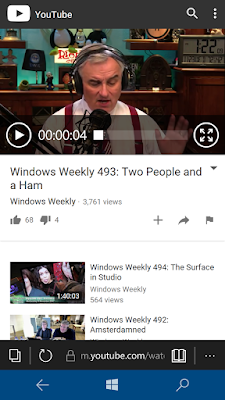

There's no YouTube App in Windows so you'll need to use Edge.

On the PC you’d probably have to be committed to chose Edge as your default web browser although come the current latest version of Windows, v1607, the browser is really seriously improved and a very viable option. On the mobile it’s considerably more than acceptable, meaning that I’ve felt zero need to go into the Store and find an alternative. For a browser on a mobile, Edge ticks all the boxes. It loads up 99% of the webpages you go to, it’s able to handle “rich” modern sites (although it can’t do Adobe Flash like it’s PC version), there’s multiple tabs, favourites, downloads and a decent sprinkling of settings. It’s perhaps not as fully featured as you find Chrome or other browsers on Android, but it pretty much does all you need it to do on a mobile device. It becomes even more relevant when there’s an absence of certain popular apps in the Store, so you’ll find yourself likely to use Edge to go a particular site rather than an app that’s not available. I haven’t experienced any major issues with Edge on the mobile, aside from the odd failure to load webpages (which won’t load one minute but then do another time) and some rather annoying issues clicking on links/images and it not responding until you’ve poked and prodded it about. These are though the exception to the rule. The vast majority of the time it’s highly useable, responsive and does the job you need it to.

The added advantage to using Edge on the mobile is that it will sync your favs to the PC version, providing you’ve turned on the sync settings, are logged into a Microsoft account, and on the latest flavours of Windows 10. This is very useful and neat. It’s no revolution but it’s certainly welcomed. The reading list is a little of an oddity. I love it, but exactly what syncs between the PC and Mobile version of Edge is rather random. Neither Reading list on either device looks the same as each other, but hey ho, at least you have a reading list on the mobile to store things to read later. As for History and download list, they don’t appear to sync between devices at all. No great loss though.

Something that is more unique to Edge is the reading view with makes complicated news articles that are full of adverts, considerably easier to read. It’s nice to have that on the mobile although I do hardly use it. Edge can also save passwords but as with the reading list, I’m not really convinced that is syncing between devices currently, and even if it isn’t, it’s a little more miss than hit for me as to visiting a page and it filling in the login details.

Cortana

On the PC, I’ve yet to find a valuable use for Cortana, aside from the fact that the search toolbar is incorporated into Cortana, so we’re all using it in some respect (unless you turn it off). The facility for Cortana to become my personal assistant looks about as far as away as me standing on the Moon next week. However, on the mobile it’s slightly different. For starters, there’s a software key for Cortana down the bottom right, which is thus always there. This means that Cortana is only a slight redirection of your thumb away, meaning that it’s so simple to call upon Cortana, why wouldn‘t you? Well, it’s still not especially useful enough if your not in the USA, and on recent Insider Builds it’s considerably flaky, but for those of you staying on a non-insider Windows 10 build, it should be there for you, but I’ve never found myself needing to use it to help remind me of the weather, news, traffic or public transport. I wouldn’t trust it in the UK anyways as even the official traffic related sites aren’t exactly that fantastic.

There is a wealth of potential in Cortana but on the PC it’s still another part of Windows 10 that’s there but the majority won’t use, but as I said, all is not lost on the mobile. It’s pretty useful for setting reminders. You can speak to it and tell it to remind you to pick up a parcel tomorrow at 4 o’clock and, providing you’ve got mobile/internet coverage, it will do that very reliably. I tend to just type ‘remind me’ into it’s search box and let the suggestions take me to where I want to go. Sure, using Cortana for reminders isn’t exactly harnessing any of it’s potential, but I have to admit that almost every day I use it multiple times for reminders. Sadly though, there’s no synchronisation of Cortana settings between mobile and PC. Ugh.

Well, sizzle my walnuts, all is not lost with integration between your phone and PC in Windows 10 though, thanks to Cortana, because it’s primary valuable feature for me is it’s ability to send notifications between your phone and PC! Yup, you can’t yet have reminders or the other ‘notebook’ settings sync between devices (i.e. your Cortana news, sports, traffic settings) but what is working is pinging notifications from your phone to your PC. What’s more, you don’t need any additional software on either device to do this, but I believe you need to be on the latest versions of Windows 10 (at least v1607 on PC) for this to work. I can’t even remember if it’s on by default but I think it is because I didn’t know where these notifications were coming from on my PC when I first got my Windows Phone. What apps on your phone get to send messages via Cortana to your PC can thankfully be controlled per app, so things like Mail, Calendar and Edge you’ll likely need to turn off for sanity reasons if you already have those notifications on your computer. It’s not intelligent enough to not send you the same mail notifications from the mail app on the PC and the mail app on the mobile, for example. 

UPDATE – Just today turned on another option in Cortana to read aloud text messages that arrive. I’ve heard it say “You’ve received a text message from <Name>” and read the name very well but it then asked me to say if I wanted it read, which I sort of thought was the idea of telling it to do that. Shall test a bit more. Maybe another good use for Cortana I may use.

3rd-party apps in the Windows Store

This is the bottom-line for most people and was also for me. It was one reason I brought a cheap refurbished Windows Phone rather than forking out for a brand new one, because I really wasn’t sure how the app experience would be on Windows 10 Mobile. Sure, I had a good idea being a geek who looked about on the PC in the Store and found naff all interesting that one would want to use on the PC, and I had heard all the rumours about the dearth of choice and quality in the Store, but I really wanted to find out for myself if this was true.

So, you really want to know the answer right?

Is there anything in the Store worth using on Windows 10 Mobile?

Well, yes and no.

Is it as bad in there as you’ve heard in terms of quality and choice?

Yes.

But it’s not all bad …

… largely because the in-built apps provide the vast majority of the functionality that most people would need to use on a phone and they do a decent job. You’ve got your email, browser, Office Apps, Camera, Maps, Music and more bits and bobs that are just there on your mobile the minute you first turn it on. There’s really little to no need to go elsewhere to try and find improvements on these existing apps, which is just as well as it might not be easy to find anything else at times.

I really can’t tell you about the quality and choice in all different genres of apps that one might need to use because unless you really have a need for something else, you’re not going to spend the time or energy checking other apps out. However, I have raided the store for numerous apps, tried and tested several, and fully adopted plenty. So, it’s best that I go through the apps I do use on my mobile phone because I wouldn’t be using them unless I had to, would I? Well, I have installed some just to see what there are like so I’ll split this section up into 3rd party apps I use and those I’ve tried.

Apps I use

It’s not a complete dearth of quality or choice in the Store as I have found a decent number of apps that provide me with a valuable daily service.

Looking at social media, the Facebook, Messenger, Twitter, VK (Russian Facebook) and Instagram apps are all pretty feature rich and contain the majority of the same functionality that you’d find on the android versions. Sure, there are a few exceptions that might annoy you (i.e. you can’t call anyone in Messenger) but almost everything is there and works. Somewhat annoyingly also with Messenger, is that it takes an age to connect every time you open the app up, especially if it’s been a while since you used it.

News wise, I can’t use my normal news app of choice, BBC News, as it doesn’t exist on Windows Mobile, so I either have to use the website via Edge or hit my second favourite news app, The Guardian, which is available and does a very good job, although it is missing some niceties from the android version. I love the BBC Sport app on android but the Windows version is a lame duck compared to it, as it’s really just a web-front end with no notifications or customisation but it’s better than nothing. As a big RSS user, I had to search out something to view the multitude of feeds I have stored on Feedly, but as that app isn’t on Windows either, the next best I found and use is called Feedlab. It’s as good as Feedly and does what I need in an RSS feed viewer. Podcasts are also a staple diet of mine and I settled on used an app called ‘Podcast’ which although I couldn’t import my exported file of podcasts from my android app, I added my fav 10 podcasts to it easily and have no trouble with it. The notification when a new podcast episode arrives is pretty funky too.

To get all my text messages from my android phone imported I used the “Switch to Windows Phone” app which is on Windows & Android and uses Bluetooth to transfer the data between phones. Takes a little while but worked.

Wordament and SnapAttack are both word puzzle games that tie into the Xbox app for social gaming and help pass away 5-10 minutes here and there. Sofascore is a feature-rich app for live updates a heck of a lot of sports, not just football or cricket. I’ve found it a little hit or miss with it’s notifications, but there’s a lot of sophistication in the app, although it’s not totally intuitive on how to use it.
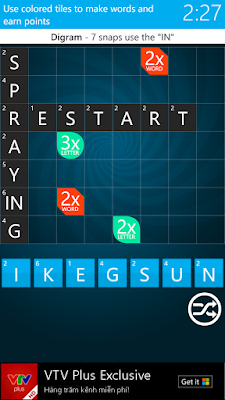

Snap Attack

The TruCaller app on Windows Mobile looks pretty and does a very decent job. I’ve had less spam calls since I installed it, as it adds it’s own DB of numbers to the block list on your phone. Only one has got through in a month and even then it told me clearly that it was spam. If you’ve read about this app sharing your contacts, don’t worry, you can opt out of that.

VPN Unlimited I used whilst away as it offers a 7-day free trial and pretty decent price plans. The app itself just gets you started on entering VPN settings, although it’s not been updated for Windows Mobile 10, but you should be able to work it out. As a service it kept cutting out intermittently but it’s hard to know if that was their service or the fact I’m on fast ring Insider mobile builds. Still, it was up enough to be useful to me.

Photo Marker is like the paint application for your mobile, letting you do useful things to photos that the Photo App won’t let you, like draw arrows and write text on photos.

Apps I tried

There’s not a lot of weather apps solely for the UK weather (i.e. using Met Office data). Of them, MetWeather provides a lovely live tile but a rather plain looking forecast layout in the app, much like Met Office’s own app. Both I find hard to work out at a glance what is going on. There are other weather apps not based in the UK which will do a job, but if you prefer Met Office data, you’re very limited on Windows Mobile.

The Daily Mail app contains a lot of different sections from the paper and tons of articles but it does guzzle space, which if you don’t have an SD card, you’ll need, but it is an app with a decent live tile and tons of content.

The BBC iplayer and iplayer Radio apps are a big joke and nothing like the Android versions as you can’t download anything or log into your BBC ID. They are both much like that BBC TV show, pointless.

If you’re a heavy Google services user, then you can imagine life on Windows won’t be great and indeed that’s true. You’ll be ok for mail, contacts and calendar which all sync nicely through the in-built apps but there’s no official Google apps for anything else, but you can find some 3rd party apps that use Google Tasks (separate to Google Keep data) and Google Hangouts, but most of them just lack functionality, seem to have not been developed for Windows 10 Mobile or, like the hangout app I tried, are painfully slow. For most Google services you’ll have to use Edge for the likes of Google+ or Google Drive but everything else is pretty painful in itself to use via a small device sized browser.

The Bottom Line

Windows 10 Mobile isn’t half as bad as the perception might be with the public. It’s highly stable in terms of Operating System and its apps. It has everything you need for a useful internet existence along with the best of the social media networks available via the Store. Even on low spec hardware, Windows 10 Mobile is responsive. The 640 has only 1GB of RAM but that’s little issue to Windows 10 although swapping between apps and camera responsiveness is where this low-spec (compared to most android phones) really starts to struggle. If you can wait a few seconds longer here and there on occasions, it’s no problem though.

The Store will be the big issue for the majority of people but if you’re not a big user of apps you’ll likely to find something that will pass for a half decent job in any particular genre. If you’re a heavy google services user, you’ll find nothing here that’ll integrate with those services outside of Mail/Calendar that’ll be much use to man or beast. In some ways, the lack of a humongous choice of apps actually makes for a calmer and more refined existence on your phone as you can concentrate on just the basics without getting distracted by even more notifications or other avenues that fill up our days with the Internet.

There’s a lot to like about Windows 10 Mobile. It’s probably misunderstood by the majority of public but if you need a phone to do the basic internet functions, find Windows very likeable, and are on a tight budget, then this OS will deliver a decent whack for it’s money. The trouble is that for a few quid more, even in the low-end market, you can pick up Android phones that will be speedier and provide a colossus amount more of quality apps.

What’s Good About Windows 10 Mobile


Home Screen appearance and live tiles are beautiful to behold and use.
Lock Screen can be set to use Bing Wallpaper which provides a visually stunning daily photo, along with useful and configurable app status indicators.
Core inbuilt apps are very useful and often rich with functionality.
It’s like having Windows on your phone and is very familiar to navigate.
Navigation bar down bottom provides double-tap ability to turn/lock your phone on and off.
Cortana is considerably more useful on Mobile than PC, with app notifications able to be sent to your PC, easy ability to create messages and a potentially useful ‘read aloud’ of text messages.
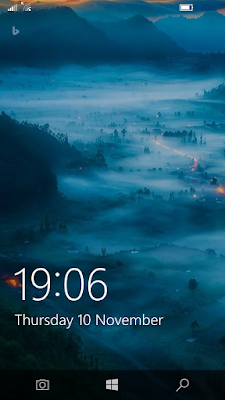

BING Wallpaper on the lock screen

What’s not so good about Windows 10 Mobile


The sounds for notifications aren’t the most pleasant if you hear them too often and aren’t easy to change.
Swiping your finger on the virtual keyboard to write is substantially more unreliable than on any Android phone I’ve ever used (but it is improving over time).
The process for setting times in various apps is rather arduously performed by scrolling for days/hours/minutes in separate scrollbars.
There’s a dearth of variety and quality in the Store on Windows 10 Mobile.

Monday, 11 July 2016

Windows 10 Insider Hub App: Two Years On

Back in August 2015 I wrote an article about the 'Insider Hub' app which was available to Windows Insiders. 


Today, one year on in July 2016, I'm revisiting the same article with another look at the hub app, which is now retitled the 'Feedback Hub'. 


What's changed in a year? Sadly, not a lot. 

The SAME issues I wrote about a year ago as being the most disappointing and annoying aspects of the Insider Hub still reside in the Feedback Hub. Despite words of encouragement from Microsoft for all Insiders to be excited about the actual feedback aspect of the Insider Project, very little has moved on and been developed.

An Introduction to Insider Feedback

I used the definition from The Oxford Dictionary for the word "hub" in last year's article, which defines it as being "The effective centre of an activity, region, or network". 12 months on, and this definition is STILL likely to make many insiders laugh out loud.

Whereas Windows 10 itself has developed from the original v1507 release on to v1511 and to the soon v1607 version which has some rather noticeable visual and background changes, the actual feedback nature of the Insider Programme, from an actual Insider user perspective, has changed very little. 

If the 'Insider Hub' and 'Windows Feedback' apps were version 1.0, then what we have now, with both apps combined into the 'Feedback Hub', could be seen as v1.5. Realistically, almost coming up to 2 years on from the creation of the Insider Programme somewhere around October 2014, we should see any Insider Feedback app as version 3.0 by now in terms of its evolution. Sadly, the feedback aspect has not kept pace with the development of Windows 10 itself.

The UWP platform hasn't taken off as hoped for by Microsoft or its fans, but it has at least seen some noticeable transformation over Windows 10's lifetime, with the main system apps now genuinely useful, quite stable and aptly supported by the much better Windows Store (at least the one in v1607).

The Insider Hub was supposed to be the heart of the Insider Programme. Something we'd use each day, immersing ourselves with it in terms of feedback that goes two-ways with Microsoft & fellow Insiders. All the latest news and information about Windows 10 development would be in the hub, where we'd be given specific quests to perform and providing results that were tangible and rewarding for us performing them. Sadly, that's still not materialised, with the quests almost feeling like a chore at best, or, at worse, completely irrelevant to the device we're on. This is further evidence about how far the actual Insider feedback aspect of Windows 10 is the lagging tremendously behind the OS.

The Feedback Hub is nowhere near the heart of the Insider Programme, but lingering more near the belly button, for it's as much use as the fluff we inner-belly button people find on a daily basis. As each day ends, we find fluff that looks exactly the same as the previous day, is of next to no use to us, and will be back again the next day. Nevertheless, much like the heart still is, the belly button was an integral part of where our body originally was fed but, unlike the heart, the belly button is now a fossil, going nowhere. The Feedback Hub feels similar in terms of treading water.  

The Feedback Hub has improved over time in minor ways, much like the Action Centre has started to become more useful and interactive from v1607 onwards. But, it's STILL not the pinnacle of Insider Information & Interaction. That source continues to come largely from Twitter, via the new Insider Chief Dona Sarkar (replacing the brilliant Gabe Aul) and the large decent number of Microsoft Employees who also reside on that social network. Want to find out about fixes, feedback and future possible changes? Head to twitter or 3rd-party windows news sites, because as sure as sure, you'll get little to no early information on developments or details about your feedback from the Feedback Hub.

The Feedback Hub continues to sum up what I said about it in 2015, which was that most Insiders might feel their feedback relationship with Microsoft is akin to being their poor cousin; they only come to us when they want something, and then we don't see them again for years, and we have no idea what they did with that present we gave them.

Microsoft are taking telemetry data from our Windows 10 PCs by the barrel load, which we are knowingly & willingly providing, but what do we actually know about that data? We know something (click link for my telemetry article) but still very little. To the most part, if you're talking about Feedback and the Feedback Hub, we probably know just as much about the telemetry as we do with our feedback via the hub, in terms of actual submitted feedback items, and, yes, those ruddy quests. That is, we know very little. We hear pint-size portions on feedback responses or have to wait weeks to hear anything via the hub. Microsoft themselves are combing through our telemetry and feedback on a daily basis, making decisions on that data and then producing actions or crossing items off their list. 

What do we hear about Microsoft’s current thought process and decision making based on OUR latest feedback? Nothing.

When do we find out if that feedback request or bug is getting any attention? 

The answer is ... When Microsoft want us to know ... or if we badger a Microsoft employee on twitter.

The ONLY time we get any tangible information about our feedback via the hub is from the "Made By You" articles which are often months behind the times, or when new builds come out and we see things like "We fixed that problem you were telling us about". Yeah, thanks for that Microsoft.

"We're listening to your feedback" is what we're told by Microsoft. Yes, they might be listening, if listening means trawling through feedback items and telemetry data, but this Insider thing was supposed to be a lot more two-way than that wasn’t it? It's extremely hard to believe that Microsoft are listening to anything we say about issues we’re having, or feature changes we all want, when there are so many examples of that not happening, or us not knowing they are listening until they proudly tell us they have, many months after we all starting moaning at their feedback brick wall about something.

Anyhow …

Back to the actual app, the Feedback Hub, and what is STILL annoying about it a year on from my last article about it, and two years on from the birth of the Insider Programme.


1. Announcements


If you’ve got an app as a hub for a specific purpose, you’d expect it to be where you’ll find out not only everything about the subject matter to which the hub belongs, but also the place to find all the latest news. When it comes to the feedback hub, you’d be wrong in thinking that. Perhaps it’s no wonder that it has been renamed from ‘Insider Hub’ to ‘Feedback Hub’ because it doesn’t really feel like a hub for insiders but somewhere us minions go to continually submit further information to Microsoft without hearing anything back.

Being a hub, you'd expect the announcements section of the app to be pouring daily-ish with the latest news in terms of how everything is progressing and the latest on our feedback, yet aside from being updated with information on build releases, and occasional team member profiles or “Made By You” articles, there's no other news to report that's of any interest. 

It’s also debatable how interesting the information that appears there is anyways. All the build information also appears on the Insider Blog and then naturally on numerous Windows Technology blogs, so it’s hardly unique to the app. May as well just whack a url link to the blog for all the special love to Insider’s that the build news provides us in the announcements section.

In fact, if the announcement feed came straight from the Windows 10 blog, it'll be much more interesting, but instead we get a drip feed of build news, random updates about apps when they feel like telling us, and the news that all insiders would never ask for if we were tortured; Microsoft Employee Bios ...


Yes, it’s interesting to know who works in the Windows 10 teams, and they are all of course lovely people in varying ways, but the actual information reads more like a dating site advert than anything relevant to Windows 10. We want to know EXCACTLY what they do with Windows 10, not what their fav food and hobbies are.

The Hub Announcements section should be crammed full of the latest Windows 10 development information, yet it barely scratches the surface of what an invigorating relevant news feed should contain.


And what about the ‘Known Issues’ filter available in this section? A year ago it was largely empty and useless. Now at least it’s not empty, because every time a build is released the known issues with that build are tagged with the ‘Known Issue’ category. However, this isn’t what any of us Insiders were expecting from this. At the bare minimum we’d expect what we currently have, but this should be the busiest part of the app when it comes to announcements because there are always bugs and issues that are ongoing with any build which Insiders may or may not be experiencing. We want this filter to be banging out the latest information on any issues on a daily basis, not waiting for builds and then having this section remain static until the next build comes around. You'd expect to know about all known issues at the touch of a button as an Insider, given we are providing the most feedback, but no. 

As said a year ago, the hub should be the first place for information on Windows 10 and insider news, but we all know that the juicy stuff is anywhere but in the hub. Thus this part of the hub has quickly become irrelevant and one that no serious insider, of which most are, would bother to click on.


2. Quests


Don’t get me wrong here. I love the concept of quests. They get us insiders to interact, learn about Windows 10 features, and provide direct feedback.

However, something has gone seriously wrong with Quests since the inception of this app. They are literally all over the place in terms of relevance, skill level, readability and … well … why are we bothering to do them?

Far too often, clicking on the quests section of this app has become something of a chore. As said a year ago by myself, out of everything I heard about the Insider Programme when I signed up, Quests for the most part have been up there as the most unsatisfactory side of being an insider.

A year ago I’d completed about 49 quests since the insider programme started up. Currently, 12 months on, I’m at 107. Within this period nothing has changed with the issues that these quests induce upon us insiders. It’s a real shame that the feedback hub is full of the same complaints time and time again about Quests but nothing is changing. 

The problem is that the vast majority of quests are STILL either childish, pointless, or behind the times. They also range wildly in terms of complexity from the simple, like opening an app, to the complex, like the equivalent of writing a C++ program to interact with NASA. Yes, they still can be that complex, especially during Bug Bashing periods. Sure, those bug squashing quests are supposed to be to iron out issues but I’m surprised by some of them that such information isn’t already being transmitted via telemetry data. 

The ONLY noticeable change to quests in the last 12 months is that there tends to be more of them and that the complex ones can have a little extra header to warn the user that they are for advanced users. The readability of the instructions within advanced quests though is often impossible to follow. Who wrote these? Did they test them with someone else first?

The main problem with quests for me, two years since they began, is that there is STILL no personalization in them. We can’t tell Microsoft what subject matters we’re interested in, or levels of complexity we’re willing to perform. We just get a dump of all quests to trawl through. Worse still, and I REALLY CAN’T BELIEVE THIS HAS NOT IMPROVED is that the quests we’re getting have NO idea of the device we’re running the hub app on! They ask us to do things we can’t do because we don’t have a touchscreen or the right flavour of Windows 10. Seriously Microsoft, how difficult is it for you to filter quests based on the device we’re on? Don’t tell me it’s difficult because you don’t know what device we’re running. You have our telemetry data and can use the app to look up basic system information on the fly. Why do we get irrelevant quests still? This is basic configuration stuff, surely?

Then there’s the problem with some of the subject matters of quests outside of Bug Bashing. They can feel like something that was discussed in the AOB section of a Windows 10 Insider meeting, with someone saying "Yeah, guess we better do something" and then someone being forced to make something up. Go check out this part of a Microsoft website or app. That’s not my idea of a quest! 

Another major problem with quests is all about reward. Jason and the Argonauts went on a quest for a reward. That’s mostly what quests are for, right? I suppose there’s the learning experience? Don’t tell me we get a badge in the achievements section or I’ll scream. Besides, we don’t get a badge for every quest. I’m somewhat thankful for that.

What is the reward for the insider for doing a quest?

There’s none really. We go through the instructions, click submit, get to rate something between 1-5 and then provide a free text feedback comment. Click submit and off that goes into the internet and into Microsoft’s DB where we hear absolutely nothing back. 

How many people did that quest? What rating did they give? What was the most popular comment? What conclusions did Microsoft make from that quest?

These are all the basic rewarding information us Insiders would expect from a quest but we hear absolutely nothing back about our efforts. 

The idea of quests is good, but the payoff seems to be heavily weighted against insiders, not least with some of the ridiculous quests we've been given and that there is no real incentive to perform them because we hear absolutely no feedback on our efforts. 

I really wonder what the point of even bothering with quests is anymore, and that’s a sad stage to have reached.


3. Rewards


Those who read my article last year will know that issue 3 was originally about the ‘alerts’ section of the Insider App. Thankfully that has been changed in the course of the year. Yes, it’s gone! Alerts are history. Thank goodness for that. So, issue number 4 from last year becomes issue number 3 this year.

Related to the lack of rewards that I was talking about from quests, we get to the section of the app that is all about making Insiders feel special and worthwhile to Microsoft. 

First up, we all know the biggest reward Microsoft gives us is the opportunity to be an Insider and get those new builds. That’s what we’re all here for, so thank you very much Microsoft. That aspect of the Insider Programme has been a tremendous success and we appreciate it.

However, let’s look at the achievements section of the Feedback Hub once again. I said it a year ago, and I’ll say it again. I grew out of wearing badges when I left the scouts many years ago. But at least those badges I earned had some relevance, like knowing I could tie a knot or make a tent. Insider achievements are so basic and worthless, that I’m surprised there's not a badge for logging into Windows or being able to turn off the computer ...


Last year I had 11 badges. This year I’m up to 14 and I feel most of them I’ve actually not really earned.

We got a badge because Microsoft released Windows 10 and then v1511. Soon there will be one for v1607. Now, I’m happy that Microsoft have released these updates, but as an insider what did I actually do towards it? I don’t know, do I, because there’s no feedback on my suggestion/problems submitted or from the quests I’ve performed. If there was, then I might feel like I had a small part to play in matters although I didn’t actually do any serious work towards manufacturing the Windows 10 OS.

Out of the 14 badges I’ve got, maybe only a handful feel relevant even two years on. I still can’t get over the ridiculousness of some of the badges that I moaned about last year. I'm a trendsetter because someone has upvoted a piece of my feedback by at least 10 votes? Great, so a few people agree with me, and what? I've started a revolution? I'm a feedback phenom because I've submitted over 50 items of feedback, yet isn't that what we're supposed to be doing? I know Microsoft is getting telemetry data from us all the time, but wasn't part of being an Insider so that we feedback information? 50 items should be a drop in the ocean compared to how much we should be letting Microsoft know about an OS that is big money for them.

Let’s look at the two of the three new ones from the last 12 months. They are about the Bug Bash which I did some quests from, for my sins. I can sort of agree with having those badges. The bug bash was specific and special for Microsoft and I did set aside time just to participate in it. The only other new one is about the shipping of v1511, which as I said before, doesn’t feel like I had much of a part to play in due to any real responses to feedback or quests.

After earning 10 badges in the first year for just turning up and doing my job as an Insider, only 3 in the second year? It feels like I’ve done absolutely nothing doesn’t it! Have Microsoft forgetting about earning badges? They were giving them away like sweets originally.

Aside from rewards, what about incentives? Still the same problems from last year … 

“The incentives for being an insider are low, and these badges really summarize it in graphic form. To celebrate Windows 10's release, Insiders were offered a discount at the Microsoft store, but only if you lived anywhere near one, of which most Insiders probably haven't even seen a Microsoft store, except for that icon in Windows 10 (and the discount wasn't for the app kind of store).” 

Microsoft, if you’re going to give us incentives and discounts, please make sure that the majority can actually benefit from them, or just don’t bother.


4. Feedback is still one-way


Two years on, and after some serious talk about changes coming to the Hub, we’ve only seen two major changes from an Insider’s perspective in terms of the visual aspect of the app. 

The separate feedback app got integrated into the Insider App, which makes a lot of sense for the Insider Programme. That was a positive change. 

Then they introduced the first aspect of trying to provide more interaction between Insiders and Microsoft. We’ve now got comments for feedback items. Woop Woop. Finally. We can converse with other Insiders. Fantastic! Well, it would be if it was considerably more useful. It’s so fiddly to use that it’s disappointing. If you comment on an item, you can’t specifically reply to someone else’s comment, but just add to the conversation. Worse still, after commenting you’ve no way of finding that comment again at a later date unless you take a screenshot of the item and search for it. Comments are like throwaway words. I’ve no idea what items I’ve commented on, or if someone agreed or disagreed with what I said because there’s no way to open up the feedback section of the app and filter just for your comments. I’m sure it’s coming but why introduce something that makes it so hard to find what you just did? It’s like writing a Word document without the ability to name the file and put it where you want on your computer. 

Then there’s the long awaited Microsoft response aspect of feedback items. Yes, Microsoft themselves can now actually mark items as being looked at or resolved, or give a few carefully construed robotic sentences of response. The latter feels worthless as it’s often just the same old thing. “Thanks for that suggestion. We love hearing from you. We’ll think about it”  … Yeah, right. 

Just like the issue with finding your comments on items, you try finding items where Microsoft have marked it as anything other than “We’ve received this”. They are hard to find in the first place, and impossible to find quickly. It really shouldn’t be this difficult to find out what Microsoft’s response is to feedback items. Because it’s so tedious we’re left feeling as most have for the last two years, which is that feedback is really only one-way. i.e. heading into Microsoft’s laps where they keep it to themselves until they decide they want us to know what they think. If they have a negative view on some feedback, they’ll probably not tell us. If they have a positive view they’ll tell us eventually months later, and probably paint it up as they are listening to us. Sigh.


5. Hub isn't a community STILL


Two years on and the hub is still not the focal point that it should be for insider information. I said it a year ago about what should change, and at least the feedback app has been integrated as I suggested but the hub needs a lot more to make it feel like an Insider community. There’s should be RSS feeds from all Windows 10 blogs, the insider forum also should be integrated into the app to make it feel more like a community. The hub feels more like the welcoming sign to somewhere, which you only take any notice of the first time you visit.

The hub continues to provide data to us on things we do, which is interesting, but this information has almost become meaningless to any insider who has been on the programme for two years as it’s the same information updated with no real conviction behind the numbers.


I’m still the best with feedback a year on? Hah, beat that fellow insiders! 

What’s that you say? The app also tells you that you are the best? I thought I was Microsoft’s favourite?

See what I mean? Why provide us with numbers that go nowhere? How do I compare to all the other insiders? I know I’m not the best. I’m not that brilliant. Make these numbers mean something by telling us how we rate in relationship to fellow insiders. Make the numbers even more relevant by telling us how much of our feedback was useful. How much of it was related to known issues? How much of it did you actually use and make changes from? Where is the feedback on our feedback?

We know we've given lots of feedback, but what any of it meant to Microsoft is unknown. Perhaps it meant very little. That's what it feels like, as we don't get an indication of its usefulness all that often, that aside from that odd mention in a build's release notes, it's the only time it's actually mentioned by Microsoft. Even then it apparently seems that Microsoft only value the top 3 or so things that we feedback about, because that's about as much as they ever let on about using our feedback.

Finally, there's ‘Devices and Activity’ in the Feedback App. LOL. What has happened to this? A year ago I wondered what the point of this was. "Activity", what did that mean? Was it referring to having the computer turned on, or what we've actually done with the build, which could be just to run a screensaver all day? And what devices does it refer to?

Oh dear. Oh dear. This part of the app has gotten even worse. Many builds ago, it stopped working reliably, and now instead of telling us hours of use, it just displays the version of the feedback app:


So many items of feedback about this not working and nothing from Microsoft. You’d expect something in the announcements section of the hub app wouldn’t you? Well, you would. But don’t be daft. That would mean Microsoft would have to be reactive and responsive with our feedback. That just doesn’t happen.


So, the final word ...


One year on from my last hub article. Two years on since the start of the insider programme. 

The first part of my summary remains largely unchanged from last year so I’ll simply be regurgitating it … albeit with some minor updates before we get to the juicy section at the end.

“In summary, the whole Insider experience had excitement oozing out of my mouth two years ago, and the enjoyment of using new builds has been largely just that ... enjoyable. For most insiders that might be enough, but it's not for those of us who place value on the time we take to use something and provide feedback. We need to know that what we're doing is worthwhile. We need to feel like we're included, and not just thrown some treats every so often in the form of new builds to lap up without any thought or reason behind our time spent using them.

Any insider who is in the IT industry with both feet, will know that whatever they do, they need to know its delivering results. The checkout counter assistant knows they are doing their job well, because people are coming by their till throughout the day, they see their expressions, and they hear their words ... and their boss isn't moaning at them. We insiders are simply checking out builds in the same way, but it's like we have blindfolds on, because we have no idea how our customers (Microsoft) feel about our performance.”

So, two years on, I still feel exactly the same, as the last year has seen extremely little attempt to change my views on being an Insider and providing feedback. I’ll continue to provide feedback but it’s getting harder to enjoy as every build arrives. What’s the point, it feels.

Development of the Windows 10 OS progresses at a reasonable pace and is of course the main part of the whole Windows Programme. But, why have Insiders and then keep them at arm’s length? The Insider aspect of Windows 10 has seriously lagged behind the pace of the OS development. It’s so far behind now that I feel that it’s still stuck on v1507 of Windows 10, rather than about to enter v1607. 

Two years on and Microsoft has continuously failed to step up to the plate with the Insider Programme. Thus far one feels more like an outsider than an insider.

Something needs to change and quickly. Extensively more focus on the hub app is needed to make it what it should have been by now. Perhaps "ranks" of insiders need to be created by Microsoft, where the most "basic" of insiders simply just play with builds and don't care what happens with their time, with an "expert" rank of insiders encouraged to use the forum, spend time on quests, talk to Microsoft and have interactions with Microsoft employees to understand and know that their feedback and issues are being listened to and being used to improve aspects of the OS.

With millions of people in the Insider Programme it should feel like one big family that's in constant contact with each other, and feeling the love. Sadly, it all too often feels nothing like a family, but that we've all been squashed into individual rooms in the same hotel with no idea of what's going on in the bigger picture.

We submit feedback items but don’t know what happens to that information. Was it useful? Did it help? Did you do anything with that information? 

We submit feedback surveys but we don’t get the results to know how well everyone else on the insider programme thinks things are going. What did everyone want to change? What did they like or dislike? Microsoft keeps all this information to themselves. It would have been a great opportunity for Insiders to interact more with other insiders in terms of knowing what each other is thinking. 

We complete quests but to what end? We don’t know how many insiders do the quests, how they rated them or what Microsoft deduced from the results of that quest. Tell us! We want to know. We want the quests to mean something to us.

“We’re listening to your feedback” says Microsoft a lot. It’s time to prove it in a real tangible way by letting us know the results of feedback quicker and with qualitative information

Why can’t we have an Insider Feedback Blog integrated into the app, where every month the main sections from our feedback in the hub are written about by Microsoft. I want to know what’s happening to the top items in each section, the items trending in the last month. What are Microsoft doing about them? Anything? We don’t know. It’s like we’re submitting feedback against a brick wall. Perhaps we’re merely writing graffiti on Microsoft’s wall and only get feedback when they come to clean it up? I’m fed up of waiting for “Made By You” articles that are months behind the times to tell us what they do with our feedback.

I said it last year, and I say it again …

Microsoft, are we insiders, or outsiders?

Does our feedback mean anything to you?

If the answer to both is yes, and one assumes and hopes so, you’re seriously overdue on making the insider programme mean something much more than it is, and for feedback to work both ways. Do something about it, and soon!